Forum Discussion

Graphics driver missing after Windows 11 system update
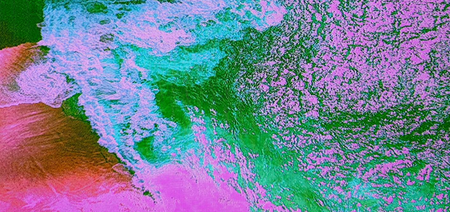

It looks like after the Windows update the driver was reinstalled, but Windows applied an incorrect color profile or signal format, which often causes chaotic or distorted colors like in your screenshot. Try the steps below — these usually fix the issue:
1. Restore the correct color profile (ICC):
Start → Color Management → Devices → select your monitor → check “Use my settings for this device” → remove all profiles → add sRGB IEC61966‑2.1.
2. Force RGB mode in your GPU control panel:
NVIDIA: Display → Change resolution → Output color format: RGB, Output dynamic range: Full (0–255)
AMD: Display → Pixel Format → RGB 4:4:4 Full
Intel: Display → Color format → RGB
3. Check if Windows is using “Microsoft Basic Display Adapter”:
Win + X → Device Manager → Display adapters.
If you see “Microsoft Basic Display Adapter”, uninstall the driver (with the option to remove it), restart the PC, and let Windows Update install the correct one.
In most cases, step 1 or 2 immediately restores normal colors.