Forum Discussion

File History has stopped functioning
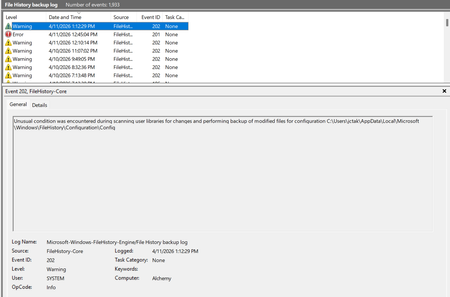

I've also been experiencing issues with File History refusing to turn on and run. It had been automatically running fine for almost a year, and then failed with some vague error message and asked me to designate the drive on which to store the data. It had been saving to the same 128Gb mini-SD in an adapter (formatted as exFAT, not NTFS) that always stayed in the designated slot on my laptop without ever being removed by me. As it was my designated device for keeping my File History updated, I had no reason to remove it.
When I opened File History from the Control Panel, it still showed the same SD card with the same drive letter it had always been. So I selected to Run Now, and the whole error process started again.
As the 128Gb SD card only had 24Gb of free space remaining, I thought maybe there wasn't enough space. So I purchased a new SanDisk Ultra 512Gb SD card with plans to start all over again. Problem is, it wouldn't let me select the new drive and presented me with another vague reason that it couldn't use a different target drive than the one already designated. I did quite a bit of research and ended up deleting all the former configuration files that were resident on my SSD C: drive as directed by the solutions presented in my research. I turned off File History, and was then able to select the new SD card upon which to save all my File History. When I left-clicked on <Turn On> in the File History window, it would gray out for a number of seconds as if it was going to begin saving files, but then would fail to start.
Did more research and it said to open services.msc from the Start>Run entry box and check to see if File History was actually running. I did, and it wasn't. So I started the File History service, which was set to "Manual" as the trigger to start the service. I then set it to start automatically going forward (NOT Automatic - Delayed Start), which is what my research said to do.
After restarting my laptop, I went back into Control Panel>File History and it was showing that the service was turned off, despite my going into services.msc and manually starting it. So I went back into services.msc and, sure enough, it wasn't running and had reverted back to a Manual start, even though I'd changed it to Automatic. I switched it back to Automatic and started the service again. Then I reopened Control Panel>File History and it was again turned off. I left-clicked on <Turn On> AGAIN, and it repeated what it did before - graying out and looking like it was going to work - but it never did. So, I'm currently in this endless loop of File History failure and don't know what to do to fix it.
FYI...
I've run DISM Restore Health and sfc /scannow and all is well - no corruption found. I've also been going back in to the C: drive Windows/File History/Configuration folder and deleting all the files in there (as directed to do in my research findings) that the process creates each time I click on the <Turn On> button in Control Panel>File History. Then I restart my laptop again and repeat the process stated in the paragraph directly above the "FYI...", etc., etc., etc.