Forum Discussion

Displays Going to Sleep
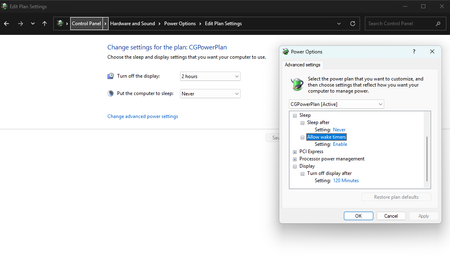

It looks like the issue isn’t caused by your power plan at all, but by a different Windows mechanism that activates only after the session is locked, not during normal use.
On fresh Windows 10/11 installations, a hidden setting is often enabled:
👉 System unattended sleep timeout
This setting is not visible by default in the Advanced Power Options, and it can force the displays to turn off about 30 seconds after pressing Win+L — even if the power plan says “Never”.
✔ How to fix it
Open regedit
Navigate to:
HKEY_LOCAL_MACHINE\SYSTEM\CurrentControlSet\Control\Power\PowerSettings\238C9FA8-0AAD-41ED-83F4-97BE242C8F20\7bc4a2f9-d8fc-4469-b07b-33eb785aaca0
Change Attributes from 1 to 2
Now open Advanced Power Settings again
Under Sleep, you will see a new option:
System unattended sleep timeout
Set it to 0 minutes or Never
After this change, Windows will stop putting the displays to sleep immediately after locking the workstation.
✔ Also worth checking
Make sure no Screen Saver is set to “Blank” with a short timeout
Check if any GPO is enforcing display timeout:
Computer Configuration → Administrative Templates → System → Power Management → Video and Display Settings