Forum Discussion

Cannot add members from my family group to new PC
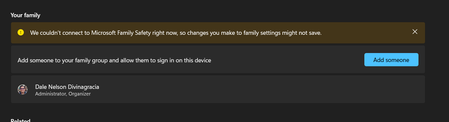

Hi! Thank you to everybody chiming in. I may have a solution (similar to andadm's solution)After chatting with MS support again and not getting a solution, I decided to install it the way I used to 5 years ago – via local accounts first and then logging in all family members one by one. It was time-consuming, but it worked! My laptop now has all my family members' accounts. Here are the steps:
- Settings > Accounts > Other Users – click Add Account
- This will pop up:
Click “I don’t have this person’s sign-in information”
- This will then pop up:
Click “Add a user without a Microsoft account”
- The Create a user for this PC wizard will then pop up:
Proceed to create a local account for each of your family.
Note: Before Microsoft Family existed, I remembered that this was how I made different local accounts for different users (re: my family) in my PC about 5 years ago (). So, it’s going back to old-school ways of doing things.
- Log in to the account you created. Open Settings and in your Home page, there should be an option to sign in your family member’s MS account:
You should be able to sign in without a hitch.
I know this is a bit of a roundabout way to handle this bug, but it is a solution that worked for me. It takes more work (the “allow sign-in” in Accounts > Family was such a time saver), but this will do for now while MS developers (hopefully) fix the bug.