Forum Discussion

Cannot add members from my family group to new PC
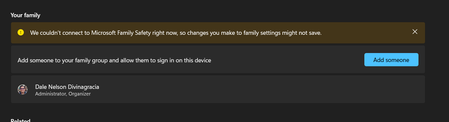

I finally got it working in my scenario, by inviting the members again and repairing my Windows installation using the following method (I have a non-English installation and have translated the options to the best of my knowledge).
Background info: I updated from Win 10 pro to Win 11 pro. I missed to setup the family settings while running Win 10 pro. I had no issues setting up family settings on an other Win 11 HOME system before so I did not expect any problems... but things did not went well and the family rules were not applied.
Please note: this worked in my case. It may not work for you. Only try the steps if you are aware of the consequences at your own risk.
To make it work, I did the following steps:
- deleted the existing accounts of family members on the computer that were created during previous attempts
- Accounts -> Family -> "Add someone" -> invited the already existing family member
- Completed the onboarding of the members (accepting invitations, logon with family members on the local windows installation)
- verify family accounts (aka.ms/familyverify) for both family admin and members
- until this step, the family rules were not applied to the family member accounts: Settings -> Windows Update -> Advanced Settings -> Recovery -> "Solve problems using Windows Update"
After the final reboot, the family rules (app limits, time limits, ...) were applied to the family member accounts.
In settings -> accounts -> family the members still not visible but are shown in settings -> accounts -> "other users". In my case this is ok.