Forum Discussion

Problems with partitions when using MBR2GPT
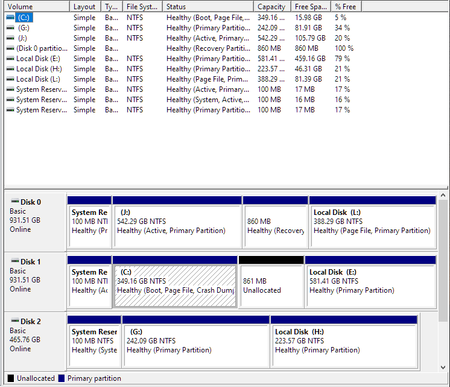

Hi Bob Arthur
I would suggest you to boot your computer from the same disk (disk 2) by changing the boot order from the BIOS, and de-attach (or disable from the BIOS) all other disks, if possible.

Disabled Disk 0 and Disk 1 in the Asus Bios. Changed Boot Order to boot from Disk 2 (500 mb disk).
Windows presented the blue screen with the option to boot from either Windows or Windows Pro. I have been booting from the "Windows" option, so I chose Windows Pro this time.
It then presented a light blue screen with the following:
Recovery
Your PC couldn't start properly
After multiple tries the operating system on your PC failed to start so it needs to be repaired.
Error Code: 0x0000001
You'll need to use recovery tools ......(etc.)
Press enter to try again
Press F8 for Startup Settings
Press F9 to use a different operating system
If F8 is pressed, I get a light blue screen with ten different options. "Enable Logging" and "Boot into Safe Mode" made the most sense. I tried those. "Enable logging" results in starting again. "Boot into Safe Mode" allowed me to select either "Windows" or "Windows Pro" once again.
- Bob ArthurOct 28, 2021Copper Contributor
I tried validating Disk 1 and it returns "Cannot find OS partition(s) for disk 1".
- SalmanAhmedOct 28, 2021Steel Contributor
It is mandatory to keep an active partition on the MBR disk. The system reserved partition (which is 100MB) is required to be active. If you mark the OS partition as active, your windows will not be able to boot.
- Bob ArthurOct 28, 2021Copper Contributor
Sorry, it was my mistake in writing the note, but not in the actions I took. Disk 0 and Disk 1 ARE disabled in the Bios. Disk 2 System Reserved is, in fact, Active as you can see below:
It now boots without showing the light blue screen with the options "Windows" and "Windows Pro", but it still doesn't allow the mbr2gpt because "Cannot find OS partition(s) for disk 2".
- SalmanAhmedOct 28, 2021Steel Contributor
Hi Bob Arthur
You have to disable disk0 (931.51GB) and disk1 (931.51GB) in order to covert disk2 (465.76GB) to GPT. In other words, you have to disable both 1TB disks to convert 500GB disk to GPT. Before you do these steps, you must active 100MB partition on disk2 (465GB).