Forum Discussion

User consent: Graph permissions
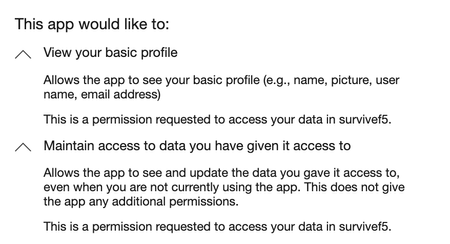

jocschjocsch Yes, there is a way to include the Graph permissions in the very first consent dialog when the app is installed, and it can be achieved through the use of "admin consent" or "pre-consent" for the required permissions.
When an app requires permissions that are considered sensitive (like Graph permissions), it needs to obtain consent from either the individual user or an administrator. In your case, since the app requires Graph permissions, it's best to use "admin consent" to ensure a smoother experience for end-users during the installation process. Admin consent allows a tenant administrator to grant consent for all users in the organization, which means individual users won't be prompted to consent to the required permissions when they install the app. Instead, the app will have the necessary permissions right from the start.
To obtain admin consent for the required Graph permissions, follow these steps:
1. **Update App Registration:**
- Sign in to the Azure portal (https://portal.azure.com/) with an account that has Global Administrator or Application Administrator role.
- Go to the Azure Active Directory (Azure AD) blade and select "App registrations" (or "Enterprise applications" if the app is already registered).
- Select your app registration representing your app.
2. **Add Required Permissions:**
- In the app registration's overview page, navigate to "API permissions."
- Add the necessary Graph permissions by clicking on the "+ Add a permission" button.
- Select "Microsoft Graph" as the API and choose the required permissions from the list.
3. **Grant Admin Consent:**
- After adding the required permissions, click on the "Grant admin consent" button.
- A pop-up will appear asking for confirmation. Click "Yes" to grant admin consent.
Once admin consent is granted, the app will have the necessary Graph permissions for all users in the organization. New users who install the app won't need to go through the consent process again for these permissions.
Keep in mind that admin consent should be handled with caution, as it grants the requested permissions to all users in the organization without individual user consent. Only administrators should be able to perform admin consent for sensitive permissions.
Additionally, if your app requires certain permissions that can only be consented to by individual users (not admin consent eligible), then you'll have to ensure that the app workflow prompts users to grant those permissions during the first use. In such cases, it's essential to provide clear explanations to users about why those permissions are necessary for the app's functionality.
Have a wonderful day.

 Microsoft