Forum Discussion

ms teams app not listed in publish to org page
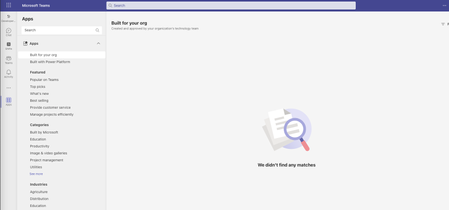

Tom_Hartogs glad you got it to work!
I'm still having trouble though. I created a raw "testapp" from the Developer portal and that is now finally showing after a day (why so long?). However, the app that I want to appear in Teams still doesn't after waiting a full weekend. It shows as identical to the "testapp". Sayali-MSFT any ideas? Would really appreciate some help, thank you!

 Microsoft
- Peter PhilipsDec 14, 2023Copper Contributor
Sayali-MSFT So, is this the expected behavior when developing an app? We often find that we need to remove the app and re-add it to make sure we are working with the latest version and to clear out any issues. Having to wait a full day each time we need to reload the app into our tenant really slows down development! Is there perhaps another way we should be pushing updates to our apps when they are in development?
- Sayali-MSFTDec 15, 2023
Peter Philips -We are also trying the same scenario, the app is showing after one hour as per expected timeline.
also yes, there is another way to push updates to your apps when they are in development without having to wait for a full day. You can use sideloading to install and update your app directly in your Teams tenant.
Sideloading allows you to install custom apps directly into your Teams environment without going through the app submission and approval process. This is useful for development and testing purposes.
To enable sideloading for your tenant, follow these steps:
-
Sign in to the Teams admin center with your test tenant credentials.
-
Go to Teams apps > Manage apps.
-
At the top right, select Org-wide app settings.
-
Under Custom apps, turn on the Interaction with custom apps toggle and Save.
Once sideloading is enabled, you can upload and install your custom app directly into your Teams environment. Here's how you can update your app using sideloading:
-
Make the necessary changes to your app.
-
Package your updated app as a zip file.
-
In the Teams client, go to the Apps section on the left-hand side.
-
Click on the Upload a custom app button at the bottom of the app list.
-
Select the zip file of your updated app and click Open.
-
Your app will be installed and updated in your Teams environment.
By using sideloading, you can quickly update your app during development without having to wait for the app to be published in the Teams store. This allows for faster iteration and testing of your app.
It's important to note that sideloading is only available for development and testing purposes. Once your app is ready for production, you will need to go through the app submission and approval process to make it available to all Teams users.
For more information on sideloading and app distribution, you can refer to the Microsoft Teams documentation.
- Peter PhilipsDec 18, 2023Copper Contributor
Sayali-MSFT Thank you so much for your detailed response. I really appreciate it.
That said, we are unfortunately continuing to encounter issues. Please let me explain.
While the sideloading works for static tabs, channel tabs, and connectors, it does not work for bot integrations. We noticed that when we sideload the app and install a bot, no "Enterprise application" is created from our App registration which is what happens when installed through Org installation and publishing. As a result, a number of endpoints needed for bot framework functionality do not work during sideloading and result in permission errors presumably because there is no way to grant admin consent.
Do you have any advice on this? Is it expected that Teams app development for bots cannot work through sideloading? Or is there other expectation? Thank you!
-