Forum Discussion

Turn off 'You may also be interested in' web part
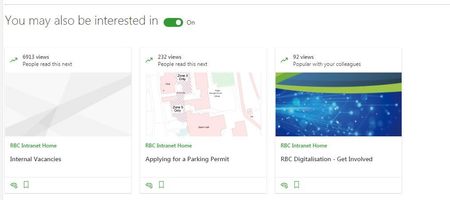

Ryan Schouten I think you can do it in the site features - it hasn't shown up for my tenant yet but I have a task for testing this feature.
To disable SharePoint Recommendations on a site, you can do so through the SharePoint Features page:
Click on the Settings Cog Wheel -> Site information -> View all site settings -> Manage site features.
Go to SharePoint Recommendations and select "Deactivate".

Thanks but I don't think that Manage site features page has any effect anymore, as it's a relic of the 'classic' SharePoint.
This annoying 'feature' is very much a modern web part thing, so it hasn't made any difference unfortunately.
- Robin NilssonOct 02, 2019Bronze ContributorI was kind of surprised as well that the solution for turning something off was the old site features, even though it was a modern thing, but it was a long description so I would have copy/pasted it. That's why I made a future task to check it - it was back in June sometime. I've got it marked as MC183456, so it may have come from there. Roadmap 52604.
 oznetPetoOct 07, 2019Copper Contributor
Hi all,
Did anyone find out how to turn off this feature?
Thanks,
Peter
- Andrew GoodwinOct 08, 2019Brass Contributor
oznetPeto - Yes. Solution as per my closed issue on the MS Docs page here: https://docs.microsoft.com/en-us/powershell/module/sharepoint-online/set-sposite?view=sharepoint-ps
To summarise:
"Regarding the property switch to disable the page feature "You may also be interested in".
There is currently no parameter on Set-SPOSite for this. The only way to enable or disable this via powershell for multiple sites/site collections is with PNP: https://docs.microsoft.com/en-us/powershell/module/sharepoint-pnp/disable-pnpfeature?view=sharepoint-ps
This is controlled by the site feature called RecommendedItems
The Feature GUID is: '780AC353-EAF8-4AC2-8C47-536D93C03FD6'
"
