Forum Discussion

Sharepoint Online, number column NOT aligned right
 Mar 04, 2020
Yes, you need to replace the formula:
=TEXT([Column],"###,###.00")
This type of modification doesn’t have any impact on the original column
Thanks

Many thanks for your quick reply!
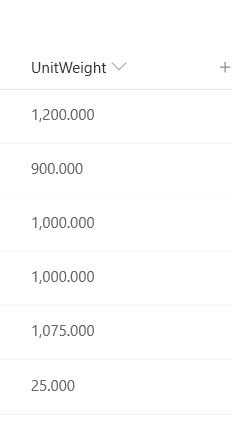
I copy/pasted your solution. Result is that the numbers are now aligned right but I lost the thousand separator and decimals with zeros (not showing). See screen shot below.
Basically it looks like numbers are converted into text? Is there a solution to align right AND keep the number formatting including thousand separator and number decimals for all rows?
I feel like we are almost there... 🙂
Cheers
I'm sorry but it takes more steps!
Sharepoint doesn't have the possibility to set decimal numbers.
As first thing to do you need to create a column, computed with the following formula:
=TEXT([column],".00")
Then insert the following code
{
"$schema": "https://developer.microsoft.com/json-schemas/sp/column-formatting.schema.json",
"elmType": "div",
"style": {
"display": "table",
"width": "100%"
},
"children": [
{
"elmType": "div",
"txtContent": "@currentField",
"style": {
"display": "table-cell",
"text-align": "right",
"vertical-align": "middle"
}
}
]
}
Thanks
- Sinan621Mar 04, 2020Tin Contributor
Again, many thanks for taking time to help me with my question. I tried it and it is very close. The only missing part is now the thousand separator: Is that possible?
And will I be still able to make number calculations with this type of column?
Cheers
Sinan
- Mike_HoneyFeb 03, 2021Brass Contributor
Sinan621 - I've stumbled across a cleaner solution to keep the thousands formatting (or any other formatting you have set) - just add .displayValue after @currentField. That returns a formatted string, using the columns format settings.
For example:
{
"$schema": "https://developer.microsoft.com/json-schemas/sp/column-formatting.schema.json",
"elmType": "div",
"style": {
"display": "table",
"width": "100%"
},
"children": [
{
"elmType": "div",
"txtContent": "@currentField.displayValue",
"style": {
"display": "table-cell",
"text-align": "right",
"vertical-align": "middle"
}
}
]
}- Sinan621Feb 04, 2021Tin Contributor
Mike_Honey Thanks for sharing, I have applied you formatting proposal to a number column, then numbers just "disappear", when I remove the formatting the numbers are visible again but not formatted as desired. Maybe this is applicable for "calculated columns" only?
- FabioO365GoDMar 04, 2020Brass Contributor
Yes, you need to replace the formula:
=TEXT([Column],"###,###.00")
This type of modification doesn’t have any impact on the original column
Thanks
- Sinan621Mar 04, 2020Tin Contributor
You rock! It works, many many thanks 🙂
For the benefit of all, here comes a summary of the steps:
- create a new calculated column with this formula: =TEXT([Column],"###,###.00")
- format this new calculated column with:
{
"$schema": "https://developer.microsoft.com/json-schemas/sp/column-formatting.schema.json",
"elmType": "div",
"style": {
"display": "table",
"width": "100%"
},
"children": [
{
"elmType": "div",
"txtContent": "@currentField",
"style": {
"display": "table-cell",
"text-align": "right",
"vertical-align": "middle"
}
}
]
}

