Forum Discussion

Sharepoint button to run a Power Automate flow.
I am pulling my hair out here. (Well, what little I have left!)
I am very new to Sharepoint Online / O365. But I have sucessfully used Power Automate to create a flow, which collects file metadata, asks for a filename and uploads the file to a SharePoint Doc Library. This works fine.
Now I want to fire this by hitting a button on my Sharepoint site. I create the button, but I cannot find anywhere where it tells me the URL of the flow I've created!
Can anyone tell me where this is hidden?
17 Replies
 Jay-at-SchoepsCopper ContributorThis was awesome. Thank you so much!
I first ran across this on https://wonderlaura.com/2018/07/18/button-in-sharepoint-list-to-trigger-microsoft-flow/
But, your explanation is much simpler. Does anyone know if there is any additional information on formatting the button? gennaro73Copper Contributor
Thanks for the great article.
It seems working, but does not execute
When I trig directly from Power automate it works (Test Riuscito) , but when I click on Sharepoint button does note execute (Non riuscito )
ID is correct....
Did so many times, any idea?
Thanks who may help me!
 Renato_BeltrameCopper Contributor
Hi gennaro73 , I'm having the same problem, did you manage to find the solution?
Mr. RobElliott , It would be great to have your experience to solve this problem. Can you help me? I will be very grateful!
 JSPOBCopper Contributor
Sorry Renato, I did not get a solution.
- RobElliottSilver Contributor
SimonMarkEdwards it's not a url you need, it's the ID of the flow. You get this from the main screen of the flow as follows:
If your button is in a document library or the Site Pages library then the trigger in your flow needs to be "For a selected file". If the button is in a list then the trigger should be "For a selected item".
You then need a single line of text column in your list/library and format it with the JSON below. You'll see the ID on the actionsParams line; you'll need to change this to your flow's ID and also change the header text and run flow button text to whatever you want and also change the txtContent line (the text on the button). And of course you change the style to however you want it to look. You'll notice that I've got the visibility as conditional based on another column (set to Yes in the flow):
{
  "$schema": "https://developer.microsoft.com/json-schemas/sp/v2/column-formatting.schema.json",
  "elmType": "button",
  "txtContent": "Publish to Teams",
  "customRowAction": {
    "action": "executeFlow",
    "actionParams": "{\"id\": \"021ec4e0-8f85-46b3-a557-a4456960a4eb\",\"headerText\":\"All Things REI\",\"runFlowButtonText\":\"Publish Now\"}"
  },
  "style": {
    "background-color": "#008082",
    "color": "white",
    "border-radius": "0 15px",
    "visibility": "=if(([$PublishedToTeams] == 'Yes'),'hidden','visible')"
  }
}
The end result of the above formatting looks like this. Click the button and flow will start:
I hope that has prevented you going bald.
Rob
Los Gallardos
Microsoft Power Automate Community Super User.
If I've answered your question or solved your problem, please mark this question as answered. This helps others who have the same question find a solution quickly via the forum search. If you liked my response, please consider giving it a thumbs up. Thanks. RicardoBDROccasional Reader
RobElliott What are other visibility rules you can apply?
For example can I show button for a specific file type?
OR show for items but not folders?
I haven't found any documentation on this so if you have a link where I can learn more that would be helpful too.
Thanks for the great post!- Rob_ElliottSilver Contributor
RicardoBDR to display only a specific file type you could add the following:
"display": "=if([$File_x0020_Type] == 'png', 'inline-block', 'none')"
To display the button only for files but not folders add the following:
"visibility": "=if([$File_x0020_Type] == '', 'hidden', 'visible')"And you could add both!
A site I've always found very useful for seeing what's possible and grabbing the JSON is at https://pnp.github.io/List-Formatting/
Rob
Los Gallardos
Microsoft Power Automate Community Super User.
Principal Consultant, Power Platform, WSP Global (and classic 1967 Morris Traveller driver)
 Monty EvansCopper Contributor
RobElliott This is some great information. How do you pass in extra parameters to the flow? Like an ID or something like that? Items in the list that might be needed to run the flow...
Thanks,
Monty
- Jay-at-SchoepsCopper ContributorThank you, Rob!
This makes things so much easier, and makes me look a pro 🙂
 Anthony-123Iron Contributor
I'm still new myself and have a similar question. As with most Microsoft things, you may need to devise a nonsensical workaround. Here's the best solution I've been able to integrate into our workflow.
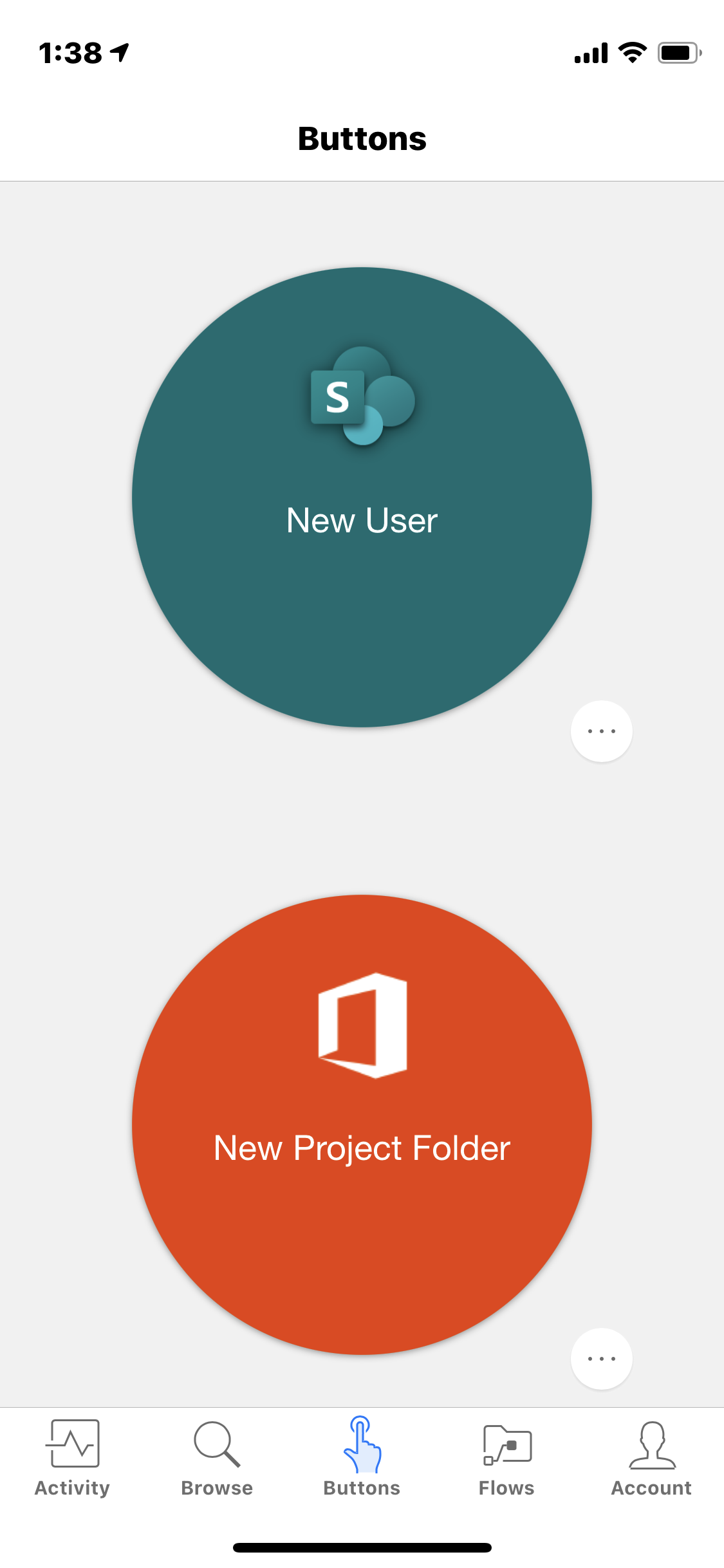
Install and sign into the Power Automate app on your phone. You should find your button on the Buttons page. Select [ ... ] and choose Share Button Link. This will give you a url to access your workflow. Copy this url and open it on your computer's web browser.
Depending on where you want this, you can usually find a place in SharePoint to create a link using this url. I have a weblink in a SharePoint Document Library which I've pinned to the top of the library for easier access. I also have the link on various buttons on our Hub Site homepage.
To my knowledge, someone please tell me otherwise, the Power Automate app is the only place to find the url to the button.- EdwardHodsonCopper ContributorMassive thanks for this. It's EXACTLY what I needed and it's working perfectly 🙂