Forum Discussion

Renaming columns -> new name not showing for site members
- Jul 24, 2020
Update July 2020:
I still had this issue with new sites and almost gave up on troubleshooting. I had a brainstorm with another SharePoint minded person and it became clear that the language template might be a thing.
When you visit a website, the language in which the browser is set determines the language in which the content is displayed. If the website offers content based on language of course. With modern browsers you have the option to support multiple languages, like spell check and browser interface. My native language is Dutch, but I set my browser to English to read Microsoft Docs in English (the machine translation is absolutely horrible).
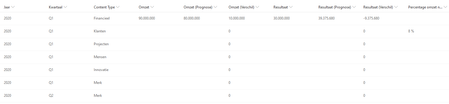
Now back to SharePoint. I create a site, make content types and columns, create libraries and lists and all that in my English browser. Most of my colleagues all have browsers with their interface set to Dutch. And here's where things go wrong. All Dutch visitors see the columns in their old ("ugly") name. When I change the user's UI language to English, *poof* all columns are in the correct "fancy" names.
So in conclusion, I have to rename all columns in two different languages, and more if we want to support other languages for our visitors as well....

I spent several hours on the phone with Microsoft to look into the problem and we manage to solve it. We looked at a number of solutions:
Solution 1: Forcing and executing column indexing
- Go to the list settings, click on advanced settings, turn on "index non-standard views", click on "re-index list".
- This can take up to 24 hours, depending on the size of the site, region of the tenant and how often this job is running.
Solution 2: Creating a search scheme
- Make sure the list contains the content types.
- Go to the site settings > management of the site collection and select "search scheme". Click on "crawled properties".
- Search for properties starting with "ows_".
- If the indexing works and the list contains data, the search with results should return. If not, you can add search properties manually.
- Check the operation of the search by searching for a known value that is already in the list.
This option re-indexes columns. Check if other members of this site see the new column names.
Solution 3: Check site features
When I create a new site in SharePoint I turn off unnecessary features by default. Features like "create new pages", "site notepad", "social features", and some more unnecessary features.
Apparently, column names are not updated for other site members and visitors if a feature (I suspect the "create new pages" option) is not enabled. In the end, this was the solution for me.
Update July 2020:
I still had this issue with new sites and almost gave up on troubleshooting. I had a brainstorm with another SharePoint minded person and it became clear that the language template might be a thing.
When you visit a website, the language in which the browser is set determines the language in which the content is displayed. If the website offers content based on language of course. With modern browsers you have the option to support multiple languages, like spell check and browser interface. My native language is Dutch, but I set my browser to English to read Microsoft Docs in English (the machine translation is absolutely horrible).
Now back to SharePoint. I create a site, make content types and columns, create libraries and lists and all that in my English browser. Most of my colleagues all have browsers with their interface set to Dutch. And here's where things go wrong. All Dutch visitors see the columns in their old ("ugly") name. When I change the user's UI language to English, *poof* all columns are in the correct "fancy" names.
So in conclusion, I have to rename all columns in two different languages, and more if we want to support other languages for our visitors as well....
 Michal_PralDec 16, 2020Tin ContributorWow, I had the exact same issue and this solved it 🙂 Many thanks
 femkevSep 02, 2020Copper ContributorThanks! Setting Dutch as the top most language in Edge, restarting, and renaming the columns again fixed the problem.
- GorillaWarfareJul 30, 2020Copper Contributor
I am having the same issue here. Could you explain how and where do users need to change the language to display the correct names? I tried changing mine in the browser and in myaccount.microsoft.com to recreate the problem but I keep viewing everything correctly.
Also I was wondering if this issue could cause other problems. In my case, the sharepoint list is connected to some flows and the from is customized using powerapps.There are some weird bugs that happened only to the one user who sees the internal names of the columns...
thanks!
- Minus50DKPDec 15, 2020Brass Contributor
Hi, just noticed your question, sorry. Don't change the language settings on the back-end (i.e. SharePoint, Office.com or Delve).
In Edge/Chrome you can change the language settings of your browser. The first language is used to tell the website that you visit in what language you want the content presented in. So if Dutch is your primary language, set it to Dutch.
If you have, for example, English branches of your office, and you want to create/rename columns, you have to change the language from Dutch to English and rename the columns again. I set Edge language to Dutch and Firefox (my main browser) language to English. This is the only way I know of to make sure that columns have the same visual name in both languages.
- Manjupatil130270Aug 16, 2022Copper Contributor
Minus50DKP Thanks for sharing this here saved lot of time for us am also facing same issue
I created List and columns without spaces in English and renamed it to user friendly in Japanese, but problem is Japanese clients are not able to see actual renamed column name its showing old English names for them please guide me solution if you found any latest. Thanks again
- Jul 29, 2020Thanks for the follow up. Interesting scenario. and I like the Username just noticed it LOL. Whelps!
