Forum Discussion

Populate a date column automatically
- Jan 04, 2022
Sharepoint_Chris this is not difficult and it compares the current version of the item with the previous one, so you MUST make sure that in your list settings -> versioning settings that Item Version History is set to on. I normally set the number of versions to 10.
In this example I prepared for a similar forum post a while back we are checking whether the Status column has changed and, if so, whether the status is now Completed. If it is then add today's date in the Completed column.
The trigger in the flow is "when an item or a file is modified":
The first action is "get changes for an item or a file (properties only)". For the ID field select ID from the when an item or a file is modified section of the dynamic content box.
For the Since field you need to add the following expression to get the previous version:
sub(int(triggerOutputs()?['body/{VersionNumber}']),1)Next, add a condition:
- in the left box select Has Column Changed: Status
- in the middle box select is equal to
- in the right box type true
Add a new row to the condition and if your SharePoint status column is a choice column then select Status value, if it's not a choice column then just select Status, and again select is equal to and then type Completed in the right hand box:
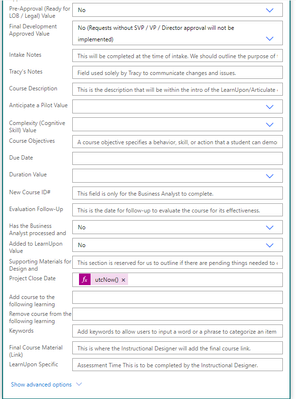
Finally, you can leave the red if no channel empty, but in the green if yes channel add an Update item action and in the Completed field add an expresion of utcNow()
So the Status has changed to completed and the flow runs and adds today's date into the Completed field.:
Rob
Los Gallardos
Microsoft Power Automate Community Super User

Rob
Los Gallardos
Microsoft Power Automate Community Super User

Thank you RobElliott! I did try the flow with Status Value Condition value set to Completed but it still shows the flow condition is not trigger. In some tests while Power Automate showed the flow not triggering, the list was populated with the Completed date. Not sure why it would not be working.