Forum Discussion

Office 365 Profile picture not displayed inside SharePoint People Web Part on Modern Site Page
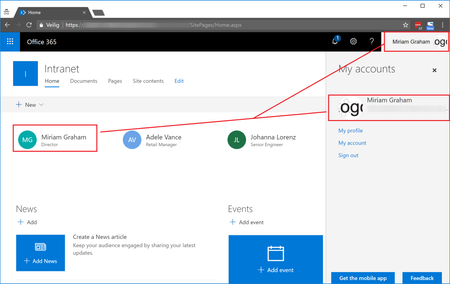
- Apr 24, 2018
This issue is fixed now for the customer. Using Microsoft Support, they were able to make required changes serverside which caused the issue for some Office 365 users. For some users specific users attributes were not set, for others they were according to Microsoft, although were not able to change these from our side. Microsoft changed things serverside to handle this. After a serverside sync update, the Office 365 profile pictures also started to display for each user inside the SharePoint People web part on Modern Site Pages.


Update: Conversations with Microsoft Support have not yielded any magic "back-end" solution that could be applied to our account to sync photos. We ultimately did the following:
1. For users with photos in O365 that weren't syncing: update manually in SharePoint Admin under "User Profiles > Manage User Profiles > Edit my profile > Picture Exchange Sync State: Change from 1 to 0 > Upload a new photo
2. For users with no photo in O365: Instruct them to upload photos at https://portal.office.com/account/#personalinfo. This link brings the user to the settings under "My account" and not "My profile" (which points to Delve and doesn't sync to SharePoint)

- Tom AtkinsonApr 10, 2019Brass ContributorTotally agreed. I'm very dissatisfied.
- Mike_AdlerApr 23, 2019Copper Contributor
Tom AtkinsonI just got off the phone with MS support and was lucky enough to get someone very knowledgeable about the photo sync process in SharePoint. First let me say that he told me to not change the "Picture Exchange Sync State" property on users profiles. It could cause internal issues with the sync process and cause you to have to contact support to get those resolved. Here I hope is the magic solution to everyone's issues in this thread. I have not tested this yet so I can't confirm it works but here is what he said:
I know you have reviewed some information on the photo synch process and you may have seen this article already but I wanted to make sure you have it handy as much of the information we discussed is contained in this article.
https://support.office.com/en-us/article/information-about-profile-picture-synchronization-in-office-365-20594d76-d054-4af4-a660-401133e3d48a?ui=en-US&rs=en-US&ad=US
As mentioned, for photo sync to work with SharePoint Online there are some key factors that have occur. SharePoint Online requires the user to have a mailbox in the Office 365 and the user photo must exist at the root of the mailbox in order for sync to occur. You can edit the following link with the email of any user to confirm that a photo is present in Exchange Online. Access the link with an authenticated account:
https://outlook.office365.com/EWS/Exchange.asmx/s/GetUserPhoto?email=user%40domain.com&size=HR648x648
The first time a user navigates within SharePoint Online, there is a discovery process that will occur to determine if the user has a mailbox. This process will update required information within the users profile to ensure the link to the mailbox. The user will require a second navigation within SharePoint to initiate the actual sync. Discovery is a onetime process. Not all sites will trigger the discovery and sync. Primary locations are the SharePoint Home page, the root site collection and OneDrive sites.
When a user navigates to a page in SharePoint Online that contains the code that makes call backs for sync, the first step in the process will be to validate the time stamp of the photo stored in SharePoint. If the photos is less than 24 hrs. old we will not attempt the sync. SharePoint will load the photo is has and move on. This means that the a user cannot update the photo multiple times in a 24 hour and expect the picture to update. If the photo is older the 24 hours, a call will be made to Exchange online to compare the binary data of the photo. If the there is a change, SharePoint will pull the data and create 3 copies of the photo (S,M,L) for use in various locations inside of SharePoint.
It is possible to programmatically update photos in SharePoint Online using supported API’s to build solutions. One example solution can be on the GitHub site. This solution is not supported by Microsoft but is built on supported API’s.
https://github.com/SharePoint/PnP/tree/f735139f22ab9f415ca0c876961710630f44267c/Samples/Core.ProfilePictureUploader
The big piece of information I got from this was the 24 hour delay in the photo sync. If you upload a new photo and your existing photo is less than 24 hours old, you have to wait 24 hours and then visit the SharePoint home page to trigger the photo sync process.
I hope this helps everyone.
- Tom AtkinsonApr 23, 2019Brass ContributorMike_Adler So glad you got this sorted out for your company. We ended up reverting to a manual effort in the end, but hopefully this will benefit those with larger tenants.