Forum Discussion

Gregi3
Mar 22, 2022Tin Contributor
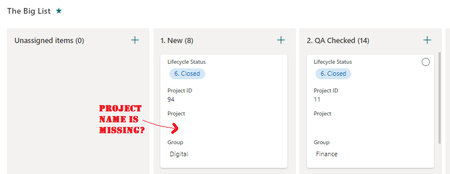
MS List - Board View - Text Not Showing
Hello I wonder if anyone has a similar issue or fix. Problem - In my MS Lists, within Board view, the attribute data (i.e. name of the project) isn't showing. This only occurs where I select "...
 May 02, 2022Gregi3 thanks for identifying that! That helps.
LillianJensen just found to help with your issue, that as a workaround if you can go into the List Settings and edit the View from in there (in the Classic way of editing a View) you'll be able to select what data shows on the card, and the order.
If you were doing any filtering you'd be in there anyway, but it's not as nice and user-friendly as the Card Designer, and our newer users won't know about this. So hopefully there's a resolution soon from Microsoft 🙂

LillianJensen
Apr 05, 2022Tin Contributor
I'm having this issue too. Following for solution

Gregi3
Apr 06, 2022Tin Contributor
Lillian, I found a work around
- Go To Lists & your board view
- In the view drop down, select 'Format Current View'
- Click on the 'Format View' Tab
- Un-tick'Card Designer'
For me, when I tick card designer, that's when I loose the formatting, I assume it's something to do with the default JSON.
I hope this helps.
Greg
- Go To Lists & your board view
- In the view drop down, select 'Format Current View'
- Click on the 'Format View' Tab
- Un-tick'Card Designer'
For me, when I tick card designer, that's when I loose the formatting, I assume it's something to do with the default JSON.
I hope this helps.
Greg
- LillianJensenApr 13, 2022Tin Contributor
Gregi3 thanks so much for sharing, it get's us part of the way there! Unfortunately when I uncheck card designer then I can't also select what data shows are the card in which order- looks like it just defaults to the first 4 columns
- Nadine McMahonMay 02, 2022Brass ContributorGregi3 thanks for identifying that! That helps.
LillianJensen just found to help with your issue, that as a workaround if you can go into the List Settings and edit the View from in there (in the Classic way of editing a View) you'll be able to select what data shows on the card, and the order.
If you were doing any filtering you'd be in there anyway, but it's not as nice and user-friendly as the Card Designer, and our newer users won't know about this. So hopefully there's a resolution soon from Microsoft 🙂- Gregi3May 03, 2022Tin ContributorThanks Nadine, this is useful. You noted the downside being this isn't as intuitive as the Card Designer, I think there is another in that we can't add more than 4 fields to the card. That said, it's useful that we can at least re-organise the card.