Forum Discussion

MobileExcelWebAccess Feature -Site Template Error
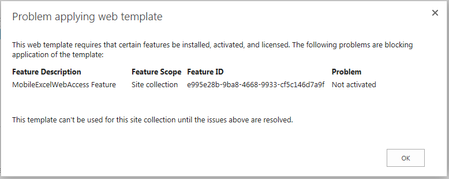

I just got off the phone with Microsoft regarding this issue. They provided me with a script that i will post below. Prior to running the script run Powershell online Management Shell as Administrator, download and install SharePoint Online Client Components SDK:
https://www.microsoft.com/en-us/download/confirmation.aspx?id=42038
Copy the Feature ID from the error message
Then copy paste the script in the following reply (due to 20k char limit)(Modify with your info as noted)
I just got off the phone with Microsoft regarding this issue. They provided me with a script that i will post below. Prior to running the script run Powershell online Management Shell as Administrator, download and install SharePoint Online Client Components SDK:
https://www.microsoft.com/en-us/download/confirmation.aspx?id=42038
Copy the Feature ID from the error message
Then copy paste the following script (Modified with your info as noted):
$host.Runspace.ThreadOptions = "ReuseThread"
#Definition of the function that allows to enable a SPO Feature
function Enable-SPOFeature
{
param ($sSiteColUrl,$sUserName,$sPassword,$sFeatureGuid)
try
{
#Adding the Client OM Assemblies
Add-Type -Path "C:\Program Files\Common Files\Microsoft Shared\Web Server Extensions\16\ISAPI\Microsoft.SharePoint.Client.dll"
Add-Type -Path "C:\Program Files\Common Files\Microsoft Shared\Web Server Extensions\16\ISAPI\Microsoft.SharePoint.Client.Runtime.dll"
#SPO Client Object Model Context
$spoCtx = New-Object Microsoft.SharePoint.Client.ClientContext($sSiteColUrl)
$spoCredentials = New-Object Microsoft.SharePoint.Client.SharePointOnlineCredentials($sUsername, $sPassword)
$spoCtx.Credentials = $spoCredentials
Write-Host "----------------------------------------------------------------------------" -foregroundcolor Green
Write-Host "Enabling the Feature with GUID $sFeatureGuid !!" -ForegroundColor Green
Write-Host "----------------------------------------------------------------------------" -foregroundcolor Green
$guiFeatureGuid = [System.Guid] $sFeatureGuid
$spoSite=$spoCtx.site
$spoSite.Features.Add($sFeatureGuid, $true, [Microsoft.SharePoint.Client.FeatureDefinitionScope]::None)
$spoCtx.ExecuteQuery()
$spoCtx.Dispose()
}
catch [System.Exception]
{
write-host -f red $_.Exception.ToString()
}
}
 Edelle TeeNov 16, 2018Copper Contributor
Hello Joanne,
Just to update this article. Yes, it did resolved the issue. Thank you so much for sharing your knowledge regarding on this one.
Regards,
Edelle- Ganesh MajetiJul 20, 2018Copper ContributorNo need of anymore dll adding as type and creating new objects... thanks to sharepoint new pnp module for online :)
Connect-PnPOnline "https://<tenant>.sharepoint.com/sites/<SiteCollectionName>"
$ctx = Get-PnPContext
$spoSite.Features.Add(<Feature-GUID>,$true)
$ctx.ExecuteQuery()  Jim ShillidayAug 03, 2016Tin Contributor
@Joann -- Thank you so much for this fix and expecially for the perfect instructions! Worked on the first try.
 Jean-Paul van den BogertJul 29, 2016Tin ContributorThanks!
This worked flawlessly- Joanne LaRoseJul 21, 2016Brass Contributor
#Required Parameters
$sSiteColUrl = "https://sitecollectionurl.com"
#Modify url
$sUserName = "yourloginID"
#Modify Username above with your administrator credentials
$sFeatureGuid= "e995e28b-9ba8-4668-9933-cf5c146d7a9f"
#Modify feature ID as needed above
$sPassword = Read-Host -Prompt "Enter your password: " -AsSecureString
Enable-SPOFeature -sSiteColUrl $sSiteColUrl -sUserName $sUserName -sPassword $sPassword -sFeatureGuid $sFeatureGuid
 Chenreddy ReddyAug 03, 2016Copper Contributor
Joanne,
I am new to sharepoint office 365 online.
We are also facing same issue,How to run this script online Sahrepoint.
Can you help me.
- Jim ShillidayAug 03, 2016Tin Contributor
@Chenreddy
If you're new to O365 Administration and Powershell, I can see how this might be difficult. Here's a step-by-step:
1. download and install SP Online Management Shell as Joann indicated (https://www.microsoft.com/en-us/download/confirmation.aspx?id=42038)
2. run the Management Shell -- a command window will open
3. copy the code in Joann's first post -- everything from the word "function" to the last curly brace.
4. paste that into the Management Shell window, hit enter. You'll get no response other than the normal prompt, but now the code is loaded and ready to use.
5. from Joann's second post, copy the line of code above #Modify url..." and paste it into the Shell window. Edit the line to chage the URL to your own SP site: "https://yoursite.sharepoint.com, then hit enter.
6. same with the code above "Modify Username..." -- change it to your login and hit enter.
7. same with the code above "Modify feature ID..." -- your error message from SharePoint prabably matches the long string, but if it doesn't, substitute yours and hit enter.
8. copy the line starting with "$sPassword," paste and hit enter -- enter your password at the prompt.
9. finally, copy and paste the "Enable-SPOFeature" code, hit enter. That will call the function using the information you entered. Go back to SP and try out your site template.Best,
Jim
- DanielGlennJul 26, 2016MVP
I confirmed on two different Office 365 tenants that this did enable the feature and allowed site creation based on a custom site template.
