Forum Discussion

zboland
Aug 03, 2023Copper Contributor
Microsoft Lists - Creating a unique SKU from a calculated column
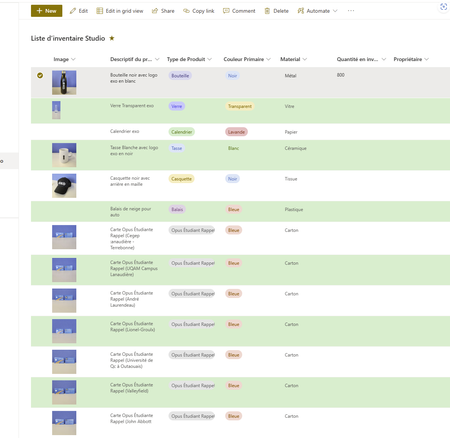
Microsoft Lists - Creating a unique SKU from a calculated column, fetching the [Type de produit] column and adding unique numbers at the end I am trying to figure out the best way to add a calcul...

Fares_Alabsi
Aug 03, 2023Copper Contributor
You can use the following formula to create a unique SKU value for products in your list:
```
=CONCATENATE("Bouteille-", TEXT([Type de Produit], "D"), "-", TEXT(ROW(), "000"))
```
This formula will first concatenate the string "Bouteille-" with the value of the [Type de Produit] column. Then, it will convert the row number of the current item to a string and pad it with zeros to the length of 3. Finally, it will concatenate the two strings together to create the SKU value.
For example, if the value of the [Type de Produit] column is "Plastic" and the row number of the current item is 1, the formula will return the value "Bouteille-100". If the row number of the current item is 2, the formula will return the value "Bouteille-101".
Here are the steps on how to create a calculated column with this formula:
1. Go to the list that you want to add the calculated column to.
2. Click the **Columns** tab.
3. Click the **Add column** button.
4. In the **Column type** section, select **Calculated**.
5. In the **Formula** field, enter the following formula:
```
=CONCATENATE("Bouteille-", TEXT([Type de Produit], "D"), "-", TEXT(ROW(), "000"))
```
6. Click the **Save** button.
The calculated column will now be added to your list. You can use the column to generate unique SKU values for your products.
```
=CONCATENATE("Bouteille-", TEXT([Type de Produit], "D"), "-", TEXT(ROW(), "000"))
```
This formula will first concatenate the string "Bouteille-" with the value of the [Type de Produit] column. Then, it will convert the row number of the current item to a string and pad it with zeros to the length of 3. Finally, it will concatenate the two strings together to create the SKU value.
For example, if the value of the [Type de Produit] column is "Plastic" and the row number of the current item is 1, the formula will return the value "Bouteille-100". If the row number of the current item is 2, the formula will return the value "Bouteille-101".
Here are the steps on how to create a calculated column with this formula:
1. Go to the list that you want to add the calculated column to.
2. Click the **Columns** tab.
3. Click the **Add column** button.
4. In the **Column type** section, select **Calculated**.
5. In the **Formula** field, enter the following formula:
```
=CONCATENATE("Bouteille-", TEXT([Type de Produit], "D"), "-", TEXT(ROW(), "000"))
```
6. Click the **Save** button.
The calculated column will now be added to your list. You can use the column to generate unique SKU values for your products.

ganeshsanap
Aug 04, 2023MVP
Fares_Alabsi ROW() function is not supported in SharePoint calculated formulas.
zboland I don't think it is possible using the SharePoint calculated column formulas as You cannot reference a value in a row other than the current row. You cannot check if bottle with same type or color is already available in the list (in another list item) and so you cannot add next sequence number like 1, 2, 3...etc. to unique ID based on other list items.
Source: Introduction to SharePoint formulas and functions
Please click Mark as Best Response & Like if my post helped you to solve your issue. This will help others to find the correct solution easily. It also closes the item. If the post was useful in other ways, please consider giving it Like.