Forum Discussion

Make a page looking more professional


Hi Christophe (CSA75FR ), first for the form, the theme used in the form or the background image doesn't get applied when you use the Forms web part so you are limited to using one of the background colours for the section on the page.
Second for the list, with SharePoint Online in the modern experience you can't add custom CSS, but you can add custom column or view formatting with JSON to make the list look better. For example the images below are examples of JSON code I have added to my lists.
The random country below is selected by a flow in Power Automate and displays the list item formatted with JSON. It has links taking the user to a Wikipedia page about the country and a Bing Maps map of the country:
The list below has alternating colours and the JSON also converts the Harvested column from a number into a pie chart:
The list below shows responses to a survey done with Forms. The JSON column formatting colour-codes each item automatically based on the answer to the question:
So it seems to me that you can make a big improvement by using JSON formatting. It's not always easy to work with but there are good examples at https://github.com/pnp/sp-dev-list-formatting/tree/master/column-samples and https://github.com/pnp/sp-dev-list-formatting/tree/master/view-samples
I'll do a mockup of how your list and form could look and post it here shortly.
Rob
Los Gallardos
Microsoft Power Automate Community Super User

Hi Rob RobElliott
thank you so much for your answer, I can't wait seeing your mockup. about the rendering issue, do you know why the fields are truncated and how I could fix it ? thanks again !! 
- RobElliottJul 08, 2020Silver Contributor
CSA75FR sorry, what's being truncated?
Rob
Los Gallardos
Microsoft Power Automate Community Super User- CSA75FRJul 09, 2020Copper Contributor
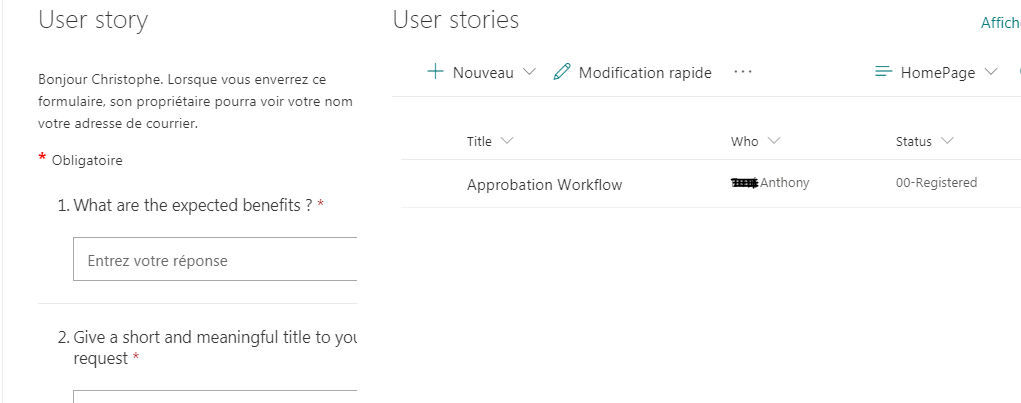
RobElliott please kindly take a look on the attachment, you will notice the fields of the form are not displayed entirely, right side is truncated..
- RobElliottJul 09, 2020Silver Contributor
CSA75FR I'm not sure why your form is getting truncated as in my experience it is responsive and even at a section style of one-third left it displays without any problem.
But for the formatting on the page, the SharePoint list columns are :
Title: single line of textEmail: single line of text
Who: single line of text
Status: Choice (Registered, Approved, Rejected)
Description: multiple lines of text
Benefits: multiple lines of text
A flow in Power Automate grabs the response and creates an item in the SharePoint list:
I have created a new view for the list called JSON and the syntax is shown below. This needs to go into the Format Current View:
{
  "$schema": "https://developer.microsoft.com/json-schemas/sp/view-formatting.schema.json",
  "hideSelection": true,
  "hideColumnHeader": true,
  "rowFormatter": {
    "elmType": "div",
    "_comment_": "MAIN DIV",
    "attributes": {
      "class": "ms-bgColor-themeLight"
    },
    "style": {
      "display": "flex",
      "flex-wrap": "wrap",
      "align-items": "stretch",
      "flex-direction": "row",
      "padding": "20px",
      "margin-bottom": "16px",
      "max-width": "930px",
      "border-radius": "8px",
      "background-color": "#f1dede0"
    },
    "children": [
      {
        "elmType": "div",
        "style": {
          "flex-grow": "1",
          "display": "flex",
          "flex-direction": "column",
          "flex-wrap": "nowrap",
          "align-items": "left",
          "max-width": "360px",
          "min-width": "205px"
        },
        "children": [
          {
            "elmType": "div",
            "style": {
              "display": "block",
              "font-size": "15px",
              "font-weight": "normal"
            },
            "children": [
              {
                "elmType": "span",
                "txtContent": "=[$Title]",
                "style": {
                  "display": "=if([$Title] == '', 'none', 'block')"
                },
                "attributes": {
                  "class": "ms-fontSize-l ms-fontWeight-semibold ms-fontColor-neutralPrimary"
                }
              },
              {
                "elmType": "span",
                "txtContent": "[$Email]",
                "style": {
                  "display": "=if([$Email] == '', 'none', 'block')"
                }
              },
              {
                "elmType": "span",
                "txtContent": "='Status: ' + [$Status]",
                "style": {
                  "display": "=if([$Status] == '', 'none', 'block')",
                  "padding-top": "20px",
                  "margin-bottom": "20px"
                }
              }
            ]
          }
        ]
      },
      {
        "elmType": "div",
        "_comment_": "DIV TWO",
        "style": {
          "flex-grow": "1",
          "display": "flex",
          "flex-direction": "column",
          "flex-wrap": "nowrap",
          "align-items": "stretch",
          "max-width": "260px"
        }
      },
      {
        "elmType": "div",
        "_comment_": "DIV THREE",
        "style": {
          "flex-grow": "1",
          "display": "flex",
          "flex-direction": "column",
          "align-items": "left",
          "max-width": "310px",
          "min-width": "155px"
        },
        "children": [
          {
            "elmType": "div",
            "style": {
              "display": "block",
              "font-size": "15px",
              "font-weight": "normal"
            },
            "children": [
              {
                "elmType": "span",
                "txtContent": "='Description: ' + [$Description]",
                "style": {
                  "padding-right": "5px"
                }
              },
              {
                "elmType": "span",
                "txtContent": "='Potential Benefits: ' + [$Benefits]",
                "style": {
                  "padding-right": "5px"
                }
              }
            ]
          },
          {
            "elmType": "div",
            "style": {
              "display": "block",
              "font-size": "15px",
              "font-weight": "normal"
            }
          }
        ]
      }
    ]
  }
}
You must make sure that there isn't a [$column] reference to a column that doesn't exist or the formatting will just return a blank.
The result looks like this as shown below, which I hope you will think looks a lot better than the ugly default SharePoint list!
Come back with any questions about this or if you need any further help.
Rob
Los Gallardos
Microsoft Power Automate Community Super User