Forum Discussion

How to create functional links with calculation based columns that works with detailed view
- Nov 24, 2020
You are right that SharePoint online doesn't support HTML in calculated columns.
I will suggest you to use complete site address while creating calculated column within CONCATENATE function (CONCATENER in your case), like:
=CONCATENER("https://tenant.sharepoint.com/sites/SiteName/Lists/Matriaux/AllItems.aspx?FilterField1=Site&FilterValue1=";Title)It will help users to copy the link if it is not possible to make it clickable.
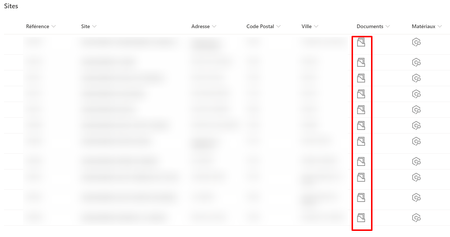
Then you can use the JSON as you are already using to show the icon and link in all items list view.
To show the clickable link on forms (detailed view panel) you need to customize the list forms using Power Apps.
OR you can wait for the new feature coming to SharePoint soon. Maybe using which you can Configure the list form and make the column clickable.
Please click Mark as Best Response if my post helped you to solve your issue. This will help others to find the correct solution easily. It also closes the item. If the post was useful in other ways, please consider giving it Like.


Any idea? Even if it is to say that it is not possible. Thank you for your help