Forum Discussion

Formatting Section View with JSON
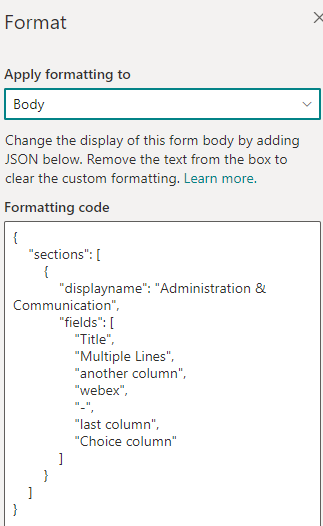
- Apr 15, 2024
kellyhickman14096 You can try adding one more section in the body JSON and add webex column in the last section. You can keep the displayname of last section to "".
Example:
{ "sections": [ { //give a display name for the section "displayname": "Administration", "fields": [ //reference your fields here using their display name "Title" ] }, { //give a display name for the section "displayname": "", "fields": [ //reference webex field here using the display name "webex" ] } ] }Documentation: SharePoint - Configure custom body with one or more sections
Please click Mark as Best Response & Like if my post helped you to solve your issue. This will help others to find the correct solution easily. It also closes the item. If the post was useful in other ways, please consider giving it Like.

kellyhickman14096 You can try adding one more section in the body JSON and add webex column in the last section. You can keep the displayname of last section to "".
Example:
{
  "sections": [
    {
      //give a display name for the section
      "displayname": "Administration",
      "fields": [
        //reference your fields here using their display name
        "Title"
      ]
    },
    {
      //give a display name for the section
      "displayname": "",
      "fields": [
        //reference webex field here using the display name
        "webex"
      ]
    }
  ]
}
Documentation: SharePoint - Configure custom body with one or more sections
Please click Mark as Best Response & Like if my post helped you to solve your issue. This will help others to find the correct solution easily. It also closes the item. If the post was useful in other ways, please consider giving it Like.

Thank you this worked brilliantly, may I ask a followup question, any idea if there's a way to get rid of the apparent default section line? So it doesn't look like a separate section when moving the "webex" column? I'm guessing no, but thought I'd ask.
- ganeshsanapApr 15, 2024MVP
You are right. Currently it is not possible to remove the default section line using SharePoint JSON formatting.
Please click Mark as Best Response & Like if my post helped you to solve your issue. This will help others to find the correct solution easily. It also closes the item. If the post was useful in other ways, please consider giving it Like.