Forum Discussion

Display Site Pages Similar to Doc Library
- Aug 17, 2022
Hello Ukiman1014
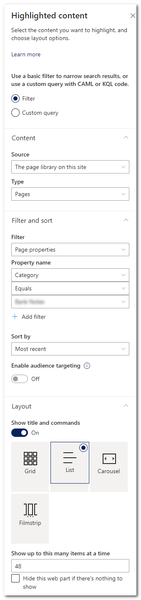
the control and setting in the highlighted content web part are limited.
For a fully customized web part view, i recommend the PnP Modern Search Web Parts. In there, you can customize the query, sort and visualization from your web parts.
Here are more information: https://microsoft-search.github.io/pnp-modern-search/
Regards, Dave

Hello Ukiman1014
the control and setting in the highlighted content web part are limited.
For a fully customized web part view, i recommend the PnP Modern Search Web Parts. In there, you can customize the query, sort and visualization from your web parts.
Here are more information: https://microsoft-search.github.io/pnp-modern-search/
Regards, Dave

- DaveMehr365Aug 18, 2022MVP
Hello Ukiman1014
good to hear. You have more guidance in the scenario tutorial: https://microsoft-search.github.io/pnp-modern-search/scenarios/
When it not help, come back here, we will try to help you 😉
Regards, Dave
- Ukiman1014Sep 01, 2022Brass Contributor
DaveMehr365 I am struggling a bit right off the bat. I have an existing "Category" column in my Site Pages. I only want PnP Search to display a list of pages with a specific category. In the https://microsoft-search.github.io/pnp-modern-search/scenarios/set-up-managed-properties/ it says that in order for anything to be filtered by the search, it must be a managed property. The column was originally just created by clicking "Add New", not going to Site Columns and clicking "Create", as stated in the instructions. So it seems that I need to create a new column as per the instructions and then go through and set that column to match the values of my original column. Is that correct?
It seems strange to me that columns created in the usual manner aren't available to search, because they're not considered Managed Properties. Am I missing something?
- DaveMehr365Sep 01, 2022MVP
Hi Ukiman1014
every column, site and list, will be crawled as "Crawled Property", but only site columns will be automatically added to "Managed Properties". For your list column a Crawled Property is created, but not a Managed Property.
If necessary, you can set the managed properties so that the properties are available as a refinement, can be used in the queries, etc.
In your case
Map your list column to an existing RefinableStringXX property, after that you can use your mapped RefinableStringXX in your search. In the default RefinableStringXX properies are the settings active, to use it in search scenarios.
I prefer
1. use site columns - with a unique prefix, and withoud spaces or special characters
2. use sharepoint search admin center for search administrations (it's also possible to do it on site level, but in big environments it can become confusing)
Hope this helps.
Best, Dave