Forum Discussion

Conditionally showing/hiding a field in sharepoint "new item" form, WITHOUT the use of any code
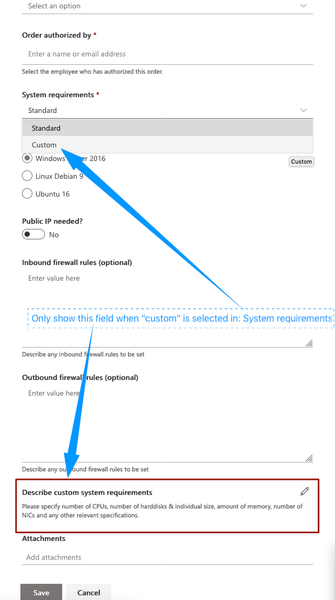


I tried to customize with powerapps, but only some of the fields are showing up? :
These are all columns for that particular list:
I've chosen to hide some of the above columns from the "new item" form, via Content types menu, but the ones you see below should be shown (they are all visible when selecting New item from the sharepoint list):
EDIT: It seems that only the first 7 columns from the list are displayed...
- Rob EllisAug 14, 2019Bronze ContributorI'm unfortunately not a PowerApps person, so I'm sure someone else will comment soon - but I wonder whether maybe PowerApps only puts the first 7 columns on the form by default, and you have to add the rest yourself.
- soerenporseAug 14, 2019Copper Contributor
You were right, I added the additional fields and got the conditional hiding of a form field to work as well. Thanks for the suggestion.
A follow up question:
For some reason I can no longer copy a direct link to the form.
Nothing gets copied to the clipboard when I press "Copy link", having clicked on New item from the list view:
What could be the cause of this, and how can I get this to work again?
- Rob EllisAug 14, 2019Bronze ContributorThat 'Copy Link' button works for an existing item - to create a sharing link to that specific item.
It does nothing on the 'new item' form (even on the default form), because the item does not exist at that point.
It would make sense for Microsoft to remove it from the 'new item' form, I think.
(I'm not sure whether it would be possible to remove it from a PowerApps custom form - worth checking that)