Forum Discussion

Conditional Formatting in Sharepoint List based on expiry date within 30 days
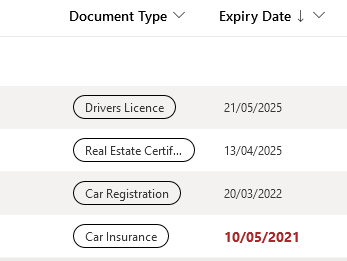

Kat_Lane go to "Format this column", switch to advanced mode then paste in the following JSON and click Save:
{
  "$schema": "https://developer.microsoft.com/json-schemas/sp/column-formatting.schema.json",
  "elmType": "div",
  "txtContent": "@currentField",
  "style": {
    "color": "=if(@currentField <= @now, 'red',if(@currentField <= @now + 2592000000 && @currentField > @now,'orange','green'))"
  }
}
With an extra line in the style section you can make the red bold, the orange semi-bold and the rest normal:
{
  "$schema": "https://developer.microsoft.com/json-schemas/sp/column-formatting.schema.json",
  "elmType": "div",
  "txtContent": "@currentField",
  "style": {
    "color": "=if(@currentField <= @now, 'red',if(@currentField <= @now + 2592000000 && @currentField > @now,'orange','green'))",
    "font-weight": "=if(@currentField <= @now, 'bold',if(@currentField <= @now + 2592000000 && @currentField > @now,'semi-bold','normal'))"
  }
}
Rob
Los Gallardos
Intranet, SharePoint and Power Platform Manager (and classic 1967 Morris Traveller driver)
 MattBensonDec 07, 2022Copper Contributor
RobElliott hope you are well!
Have been following on this thread and have a question if you could please help me, have tried searching with no result!
The code below works for me with the traffic light system, just on the orange color - how would I express now (today) plus 6 months then orange?Hope that makes sense, and thank you for the help! 🙂
 Kat_LaneDec 08, 2022Copper Contributor
Hi MattBenson,
When I used the code provided, all I did was copy & paste it across, not really understanding the components. After a little googling, I found that in my code (above), the number 2592000000 actually represents 30 days in milliseconds.
If I use my code and change that number to represent 6 months in milliseconds (15778800000), it will change my expiry date column to make anything that expires within the next 6 months orange and bold.
This is what I used to calculate the time - https://convertlive.com/u/convert/months/to/milliseconds#6
And this is the code I used, altered to allow for 6 months instead of 30 days.
{
"$schema": "https://developer.microsoft.com/json-schemas/sp/column-formatting.schema.json",
"elmType": "div",
"txtContent": "@currentField",
"style": {
"color": "=if(@currentField <= @now, 'crimson',if(@currentField <= @now + 15778800000 && @currentField > @now,'orange','black'))",
"font-weight": "=if(@currentField <= @now, 'bold',if(@currentField <= @now + 15778800000 && @currentField > @now,'bold','normal'))",
"font-size": "=if(@currentField <= @now, '14px',if(@currentField <= @now + 15778800000 && @currentField > @now,'14px','normal'))"
}
}This will format any date in my 'Expiry Date' column as follows:
Expiry date before today is bold & crimson
Expiry date in the next 6 months is bold & orange
Expiry date more than 6 months from today is regular & black
I hope that helps.
- Kat_LaneOct 06, 2021Copper Contributor
RobElliottit worked! Thank you so much

I was even able to tweak it to show both red and orange as bold, change the colour to a deeper shade of red and increase the font size - perfect! I have now lost the grey and white alternating lines, because that was set using OOTB conditional formatting. How would I add that back in without losing the rest of the formatting that we've added?
However... I can't get it to work in gallery view.
Because I've set this view to only show the items that need attention - unsigned, expired or due to expire (within 30 days), I was able to use the OOTB conditional formatting, but it must have overwritten the code as it changed the list view. Because I was formatting the dates purely as today, before today or after today, it worked for this restricted view, but not for the full list, colouring items that didn't need colouring.
Oddly enough when I change this restricted view to show in list or compact list, it works perfectly, pulling across the conditonal formatting from the code. So why doesn't it work in the gallery view?
Yes, I could change it to show as list or compact list, but I do like the gallery view for this information as it makes it obvious to the user that they're in this view. Some of the people who are required to edit this list are not very SharePoint (or tech for that matter) savvy, and I would worry about them trying to 'get back' to what they saw before, even though I've set up the views they will need so it's just a few clicks to change.
Any ideas?
 danielr225Oct 16, 2023Copper ContributorDid you find a solution to the galley issue? I have the same problem.
