Forum Discussion

Average age Sharepoint
- Nov 30, 2023
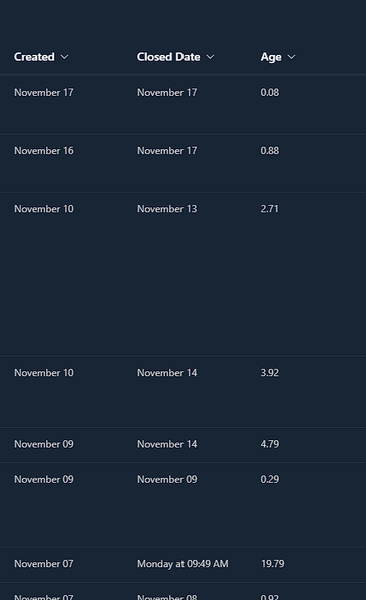
wschaefer this post is quite long, so grab a glass of wine and strap yourself in for the ride. A new number column has been added to the list and we'll use it to populate item ID 1 with the average of ALL items as shown in the first image below:
1. In Power Automate I still prefer using the classic designer (as many of us do), but this will use the new designer. The trigger for the flow is a recurrence schedule set to run at 2am on Monday to Friday although you could run it at whatever schedule you want:
2. The first action in the flow is initialize a variable called varItems and we'll set the type to Float and with no initial value.This variable will hold the number of items in the list.
3. Next, add another initialize variable call varWorkingDays and it's also a Float variable.
4. We're adding the overall average into the list item that has an ID of 1, so add a SharePoint get item action, select the site and list and in the ID field enter 1:
5. We now want to get all the items from the list where the End column is not null (your column names will be different of course). So the Filter Query needs to be set to End ne null (where ne is not equal to😞
6. Next, add an apply to each and select value from the dynamic content box:
7. Inside the apply to each and an increment variable action, select the variable varItems and the value to 1
8. Next, add a Compose action and select WorkDays from the get items section of the dynamic content box:
9. Add another compose action and select the variable varWorkingDays from the dynamic content box:
10: Next, add a Set variable action and add the following expression (from the Expression tab of the dynamic content box)
add(outputs('ComposeWorkingDays'),float(outputs('ComposeWorkDays')))11. Outside the apply to each add another compose and select the variable varWorkingDays:
12. Add another compose action and select the variable varItems:
13. Add yet another compose action (they really are my favourite!) and add the following expression to divide the working days variable by the items variable:
div(variables('varWorkingDays'), variables('varItems'))14. By default the float variable will have 13 decimal places wich is a bit much, s we want to change it to 2 decimal places. This can be done with the Format number action:
15. Finally we add a SharePoint Update item action, select ID 1 and the title (from the get item section of the dynamic content box) and for the Average column select formatted number from the dynamic content box.
Rob
Los Gallardos
Microsoft Power Automate Community Super User.
Principal Consultant, SharePoint and Power Platform WSP (and classic 1967 Morris Traveller driver)

When i follow the steps as provides i keep running into a few issues one was i changed the names of my columns so i could fallow along easier (figured out why new names weren't working already)
Now it gives me a different error of cant use the column i selected it to grab the data from

wschaefer a filter query can't reference a calculated column. My example was not using a calculated column in the filter query.
- wschaeferNov 30, 2023Copper ContributorRob ur the **bleep**ing man i got it working, now just some follow up questions, So it doesnt count 0 because you cant divide by 0 obviously so what about the ones that would be under a day those will come up just as 1 correct? Also if i took out tickets that would Raise my average by a lot like my boss has some in there that took months to complete if i took those out and reran it it should show up the new one correct IE the average should drop is that thinking correct? and again i cant thank you enough
- wschaeferNov 30, 2023Copper ContributorAlso one more question is there a way i would be able to do this in hours not days the days does work but if i can change it to that that would be huge for me as realistically these should be done under a day. Again I cant thank you enough for your help
- Rob_ElliottDec 01, 2023Silver Contributor
wschaefer one thing I noticed was that the get items action in your flow brought back 100 items which is the default maximum. To increase this click the 3 dots at the top right of get items, click the Pagination toggle to on and set the threshold to a number that is higher than the number of items in the list then click Done at the bottom of the panel:
"so what about the ones that would be under a day those will come up just as 1 correct?"
the items that are under 1 day, i.e just a few hours, will be shown as 1 with the calculated column formula I gave you."some in there that took months to complete if i took those out and reran it it should show up the new one correct IE the average should drop is that thinking correct?"
Yes that's correct.one more question is there a way i would be able to do this in hours not days?
Yes this can be done. I've added 3 columns to the list; Hours,(calculated), HoursNumeric (calculated) and AverageHours (text) and the overall average hours is added by the flow to item ID 1:
The formulas are:
Hours:
=IF(ISBLANK(End),"",INT((End-Start)*1440)-MOD(INT((End-Start)*1440),60))/60&" Hours "&MOD(INT((End-Start)*1440),60)&" Minutes"HoursNumeric:
=End-StartThe flow is then very similar to the one I gave you before:
Then outside the apply to each:
Rob
Los Gallardos
Microsoft Power Automate Community Super User.
Principal Consultant, SharePoint and Power Platform WSP (and classic 1967 Morris Traveller driver)
- wschaeferNov 30, 2023Copper Contributor
Ok so now that i got that part flowing to the next i now have an issue with the apply to each specifically with the division sorry if this is all straight forward to most I really appreciate all the help thus far this has been a big lead for me. would this be caused by the column names being different and i would have to change out the formula to include what they were ?
- wschaeferNov 30, 2023Copper Contributor
I guess im not understanding what its trying/supposed to grab nothing works ive been stuck for hours (****figured this part out few mins after this)