Forum Discussion

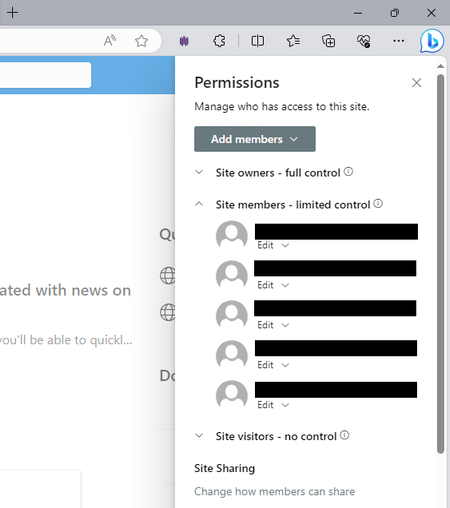
Accidentally deleted the default members container from the members group
- Oct 28, 2023
I am able to add M365 members group without any issues.
If you have admin access on tenant, you can check exact group names/emails for M365 groups at: https://admin.microsoft.com/#/groups
If you do not have tenant admin access, you can search for your M365 group email in to section of new mail in outlook:
OR maybe from the details of Microsoft team associated with your M365 group.
Please click Mark as Best Response & Like if my post helped you to solve your issue. This will help others to find the correct solution easily. It also closes the item. If the post was useful in other ways, please consider giving it Like.


Hi Seaoar,
I have reviewed your question and the screenshots, and to try to resolve this you can try the following steps:
- Go to the SharePoint site where you want to restore the container.
- Click Site Settings in the top right corner of the page.
- Under Site Actions, click Site Permissions.
- On the Site Permissions page, click Add Permissions.
- In the Add Permissions dialog box, select Copy permissions from an existing group, and then select the Site Members group from the drop-down list.
- Click OK.
This will copy the permissions from the Site Members group on the other SharePoint site to the Site Members group on the current site. This will also restore the default members container to the Site Members group on the current site.
Please click Mark as Best Response & Like if my post helped you to solve your issue.
This will help others to find the correct solution easily. It also closes the item.
If the post was useful in other ways, please consider giving it Like.
Kindest regards,
Leon Pavesic
(LinkedIn)

Good afternoon LeonPavesic..... You never did respond to him and I am having the exact same issue. Could you explain your directions a little more clearly and confirm the actions are all there? I would really like this container back into the members group but my IT department is struggling a bit. Having these instructions would help greatly. Thank you for your time and consideration.
- virendrakJun 10, 2026Steel Contributor
KNeal , please see if this thread can help -
Can default permission groups be restored in SharePoint Online? | Microsoft Community Hub
