Forum Discussion

A bunch of files are missing from Desktop folders managed by OneDrive
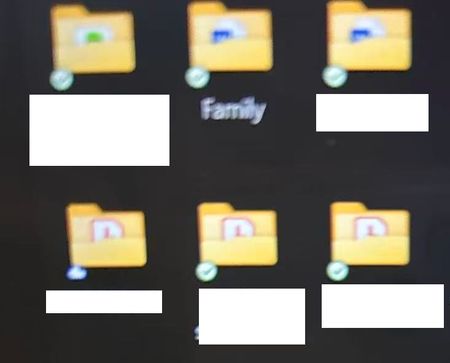

You’re running into a very common OneDrive + Desktop sync problem, especially on Windows 10/11 machines used by non-technical users. The good news: the files are very likely not deleted. They’re just not where Windows is currently looking.
Find the missing files (most important)
Check the REAL local Desktop
- Press Win + R
- Paste:
%USERPROFILE%\Desktop
3. Press Enter
If the files appear here, they were moved out of OneDrive already.
You can stop here and just disable OneDrive.
Check OneDrive’s local folder
- Press Win + R
- Paste:
- %USERPROFILE%\OneDrive
- Look for:
- Desktop
- Documents
- Pictures
Open OneDrive\Desktop
Very often the files are all sitting right there.
Check OneDrive online (important backup)
If nothing is local:
- Go to onedrive.live.com
- Sign in with the Microsoft account used on the laptop
- Open Desktop
- Also check Recycle Bin
If they’re here, they are 100% recoverable
My answers are voluntary and without guarantee!
Hope this will help you.
Was the answer useful? Mark as best response and like it!
This will help all forum participants.
 unrealsimonJan 19, 2026Copper Contributor
Hi, thanks for the reply. I have already done all of the above following suggestions from ChatGPT, but can confirm that those files are also missing from both the local desktop's folders and on the OneDrive website & recycle bin.
- NikolinoDEJan 20, 2026Platinum Contributor
I understand your frustration—this is a common OneDrive sync issue, especially when non-technical users are involved. Since you’ve already checked the local Desktop folder and OneDrive online (including Recycle Bin), and the files are missing from both, here’s a step-by-step plan to recover the files and permanently disable OneDrive:
Step 1: Confirm File Locations Again (Critical)
Even though you’ve checked, let’s rule out oversight:
1. Local Desktop Folder (Synced with OneDrive):
Press Win + R, type %USERPROFILE%\Desktop, press Enter.- If files are here: They were moved out of OneDrive sync. Skip to disabling OneDrive.
- If empty: Proceed.
2. OneDrive Local Folder:
Press Win + R, type %USERPROFILE%\OneDrive\Desktop, press Enter.- If files are here: They’re still in OneDrive but not visible on the Desktop. Copy them to a safe location.
- If empty: Proceed.
3. OneDrive Online Recycle Bin (Double-Check):
Visit OneDrive Recycle Bin and check both "Restorable items" and "Deleted items". Sort by date.Step 2: Check Hidden Files or Sync Errors
OneDrive might hide files due to sync issues:
1. Show Hidden Files:
Open File Explorer → Click "View" tab → Check "Hidden items".- Recheck %USERPROFILE%\Desktop and %USERPROFILE%\OneDrive\Desktop.
2. Check OneDrive Sync Status:
Look for the OneDrive cloud icon in the system tray (bottom-right corner).- If it shows an error (red X): Right-click the icon → "View sync problems". This will list any failed syncs.
Step 3: Restore from Local Backup (If Enabled)
Windows has a hidden "Previous Versions" feature for folders:
- Right-click the empty Desktop folder (or %USERPROFILE%\OneDrive\Desktop) → "Restore previous versions".
- If a previous version exists, select it → "Restore".
Step 4: Use File Recovery Software (Last Resort)
If files are truly deleted from both local and cloud:
- Stop using the PC immediately to avoid overwriting data.
- Download R e c u v a (free) or Ease US Data Recovery (paid).
- Scan the %USERPROFILE%\OneDrive\Desktop folder or the entire drive.
- Recover files to an external drive (not the Desktop).
Step 5: Permanently Disable OneDrive
To prevent recurrence:
1. Unlink OneDrive:
Right-click the OneDrive cloud icon → "Settings" → "Account" → "Unlink this PC".- Follow prompts to keep files (they’ll stay in %USERPROFILE%\OneDrive).
2. Disable OneDrive at Startup:
Press Win + R, type taskmgr, press Enter → "Startup" tab → Right-click "Microsoft OneDrive" → "Disable".3. Uninstall OneDrive (Optional):
Press Win + X → "Apps and Features" → Search "OneDrive" → "Uninstall".4. Block OneDrive via Registry (Advanced):
Press Win + R, type regedit, press Enter → Navigate to:
HKEY_LOCAL_MACHINE\SOFTWARE\Policies\Microsoft\Windows- Create a new key named OneDrive (if missing).
- Add a DWORD (32-bit) named DisableFileSyncNGSC → Set to 1.
Final...
- If files were accidentally deleted >30 days ago, they’re gone from OneDrive Recycle Bin.
- Disabling OneDrive ensures it won’t resync after Windows updates.
- For your mom: Move her Desktop to a non-synced folder (e.g., C:\Users\Mom\Desktop-Local) to avoid future sync issues.
- unrealsimonJan 27, 2026Copper Contributor
thanks, let me give this a try (sorry for the late reply, was busy with my own work and didn't have the chance to help my mom)