Forum Discussion

tarheelfan_1977
Mar 05, 2020Tin Contributor
Teams not showing in Outlook Mobile App
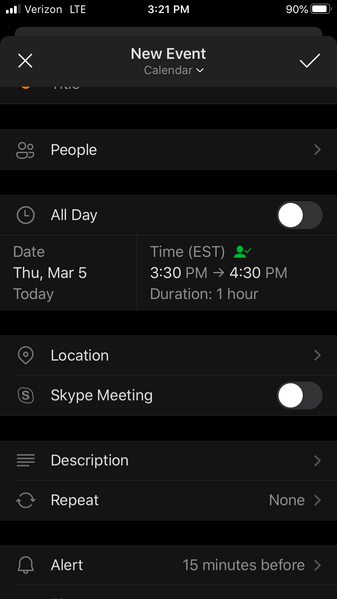
Our IT Dept is starting to do some testing of Microsoft Teams. We see the Add In when we create a meeting in Outlook, but when we try via the Outlook App on our iPhones. The only option we see is Sky...
 Mar 05, 2020I wonder if it depends on what mode you're in. I know you haven't used Skype but I know I had to switch over to TeamsOnly mode in the Admin Center for other changes to happen.
Jenny8675
Mar 05, 2020Brass Contributor
I wonder if it depends on what mode you're in. I know you haven't used Skype but I know I had to switch over to TeamsOnly mode in the Admin Center for other changes to happen.
- tarheelfan_1977Mar 05, 2020Tin ContributorI have changed it I will have the person i am testing with check and see if it makes any difference for them.
Thanks for the fast response!- Mar 05, 2020Yes, if you had to change your mode, Teams only is what controls the Outlook app for showing Teams in the app. It might require a sign out / in and or a data cache clear in the app for it to update to Teams after the change, but usually it takes after awhile.
- tarheelfan_1977Mar 06, 2020Tin Contributor
ChrisWebbTech I checked this morning after making the change yesterday and it still only gives Skype as the option. This was also me adding my mailbox to the Outlook app fresh it had not been there previously.
Open to any other ideas ...
- Jenny8675Mar 05, 2020Brass ContributorNo worries and for future reference, it can help to clear cache when troubleshooting Teams. Someone created a PS script which is awesome. Otherwise, you have to go to 13 different locations just to clear cache.
$challenge = Read-Host "Are you sure you want to delete Teams Cache (Y/N)?"
$challenge = $challenge.ToUpper()
if ($challenge -eq "N"){
Stop-Process -Id $PID
}elseif ($challenge -eq "Y"){
Write-Host "Stopping Teams Process" -ForegroundColor Yellow
try{
Get-Process -ProcessName Teams | Stop-Process -Force
Start-Sleep -Seconds 3
Write-Host "Teams Process Sucessfully Stopped" -ForegroundColor Green
}catch{
echo $_
}
Write-Host "Clearing Teams Disk Cache" -ForegroundColor Yellow
try{
Get-ChildItem -Path $env:APPDATA\"Microsoft\teams\application cache\cache" | Remove-Item -Confirm:$false
Get-ChildItem -Path $env:APPDATA\"Microsoft\teams\blob_storage" | Remove-Item -Confirm:$false
Get-ChildItem -Path $env:APPDATA\"Microsoft\teams\databases" | Remove-Item -Confirm:$false
Get-ChildItem -Path $env:APPDATA\"Microsoft\teams\cache" | Remove-Item -Confirm:$false
Get-ChildItem -Path $env:APPDATA\"Microsoft\teams\gpucache" | Remove-Item -Confirm:$false
Get-ChildItem -Path $env:APPDATA\"Microsoft\teams\Indexeddb" | Remove-Item -Confirm:$false
Get-ChildItem -Path $env:APPDATA\"Microsoft\teams\Local Storage" | Remove-Item -Confirm:$false
Get-ChildItem -Path $env:APPDATA\"Microsoft\teams\tmp" | Remove-Item -Confirm:$false
Write-Host "Teams Disk Cache Cleaned" -ForegroundColor Green
}catch{
echo $_
}
Write-Host "Stopping Chrome Process" -ForegroundColor Yellow
try{
Get-Process -ProcessName Chrome| Stop-Process -Force
Start-Sleep -Seconds 3
Write-Host "Chrome Process Sucessfully Stopped" -ForegroundColor Green
}catch{
echo $_
}
Write-Host "Clearing Chrome Cache" -ForegroundColor Yellow
try{
Get-ChildItem -Path $env:LOCALAPPDATA"\Google\Chrome\User Data\Default\Cache" | Remove-Item -Confirm:$false
Get-ChildItem -Path $env:LOCALAPPDATA"\Google\Chrome\User Data\Default\Cookies" -File | Remove-Item -Confirm:$false
Get-ChildItem -Path $env:LOCALAPPDATA"\Google\Chrome\User Data\Default\Web Data" -File | Remove-Item -Confirm:$false
Write-Host "Chrome Cleaned" -ForegroundColor Green
}catch{
echo $_
}
Write-Host "Stopping IE Process" -ForegroundColor Yellow
try{
Get-Process -ProcessName MicrosoftEdge | Stop-Process -Force
Get-Process -ProcessName IExplore | Stop-Process -Force
Write-Host "Internet Explorer and Edge Processes Sucessfully Stopped" -ForegroundColor Green
}catch{
echo $_
}
Write-Host "Clearing IE Cache" -ForegroundColor Yellow
try{
RunDll32.exe InetCpl.cpl, ClearMyTracksByProcess 8
RunDll32.exe InetCpl.cpl, ClearMyTracksByProcess 2
Write-Host "IE and Edge Cleaned" -ForegroundColor Green
}catch{
echo $_
}
Write-Host "Cleanup Complete... Launching Teams" -ForegroundColor Green
Start-Process -FilePath $env:LOCALAPPDATA\Microsoft\Teams\current\Teams.exe
Stop-Process -Id $PID

