Forum Discussion

Teams auto starts DESPITE disabling it

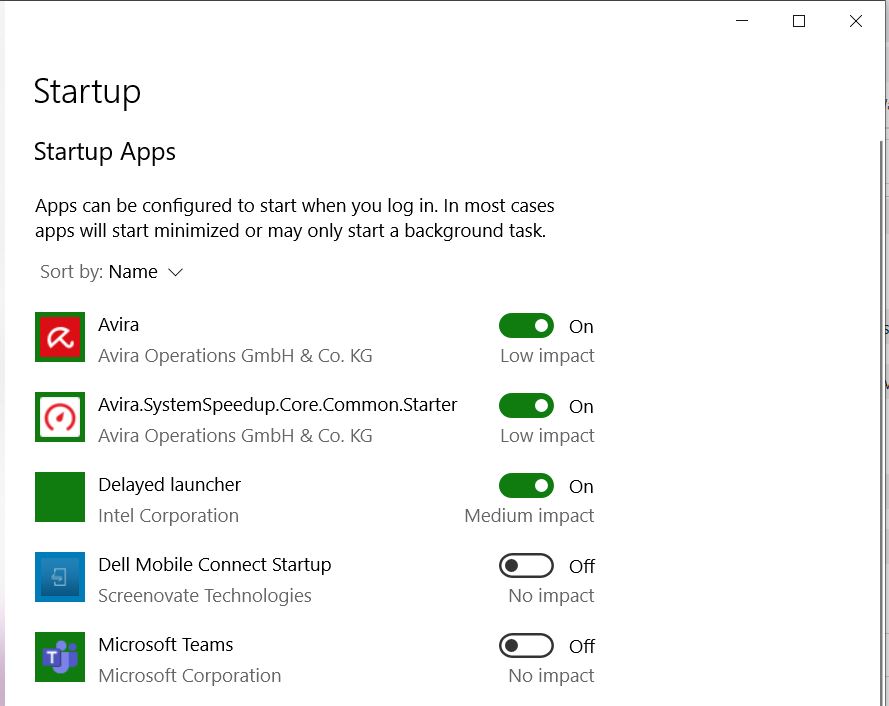

Thanks for the answer! I saw the other thread, however I have done all the recommended actions. I disabled auto start both in the apps settings and in the computer's settings. This did not stop teams from auto starting though.
I can't seem to find the registry key, even though I've put its name in the search bar to check across my laptop. Where is the HKCU folder?
Thank you for your help!

Jule_Marie Hello! Go via the start button (Windows button), type "regedit" and press enter for the 'Registry Editor' to open up. Then browse to the location. HKCU stands for HKEY_CURRENT_USER. Good luck! 🙂
- Jule_MarieMay 11, 2020Copper Contributor
Thanks! I found the registry entry and deleted it! However...
I restarted my laptop and voila... Teams auto launched again. What kind of sorcery is this

- ChristianBergstromMay 11, 2020Silver Contributor
Jule_Marie Hello again, I know that it's frustrating as the key needs to be deleted with a script. To prevent the behavior there's a GPO you can use and it has to be created before Teams is installed. But once you've started Teams after that it's going to start automatically again. There are a couple of UserVoice request you can vote on, this is one of them:
https://microsoftteams.uservoice.com/forums/555103-public/suggestions/33728680-disable-startup-option
How about using Teams on the web if you don't want the Teams app to auto-start?
 Musicmaker1981Dec 10, 2021Copper Contributor
We've create a group policy (in user context) to remove de com.squirrel.Teams.Teams key from the current user section. It should apply to the use that is logging in. But Teams keeps starting.
I manually deleted the key. Logged off en back in. Teams started again, so I went in Regedit again. And.... the key was back! So what triggers the key to get created again?