Forum Discussion

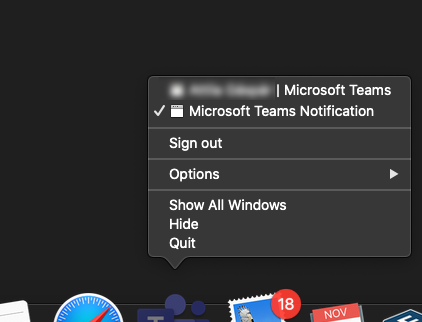
I can't switch back to Teams chat with Alt+Tab on Mac
 Apr 13, 2021
Ok, I found a "solution" to force Teams to use the notifications.
Simple version:
01. You go to your teams https://teams.microsoft.com02. When it asks for notifications, give the permission and that's it.
As an App in your dock:
02. You copy the URL from your logged-in teams-tab (01.)
03. You install Epichrome
(Very useful, you can wrap a Website as a App and it appears in the dock. Basically is MS doing the same with their "App" except it uses Electron, Epichrome uses Chrome or Brave.)
04. Start it, go through the wizard, when it asks for the URL, give your Teams-URL and a fine name for it.
(Icon can be automatically downloaded)
05. Start the new app, log in, give permission for notifications. Since it is basically a browser, it is forced to use the default MacOS Notifications. Alt-Tab works again.
Alternatively, there is a way to make a WebApp with chrome. But I never use chrome.
I just had sometimes micro problems after sleep mode.
 guitaraddictJun 14, 2022Tin Contributor
chromax_123
BRILLIANT!!!!
This is the best and simplest workaround to date, and it's practically indistinguishable from using the Desktop app. I'm kicking myself for not thinking of this. Really great idea, chromax_123!Here are some instructions if you've not created a "Chrome App" shortcut before. (Note, this workaround requires a chromium browser with the app/shortcut/pin ability. Instructions below are for Chrome.)
1. Open Chrome and login to the Teams webpage portal (teams.microsoft.com). You may want to enable notifications (if prompted).
2. In your Chrome browser, click the three vertical dots in the top right corner. Select More Tools -> Create Shortcut...3. In the dialog prompt, name your app (e.g., Teams) and be sure to check the checkbox next to "Open as Window."
4. This will Launch teams in what feels like a new, clean tab, and it'll create a shortcut in your "Chrome Apps" folder on your Mac (User/Applications/Chrome Apps). While you have the tab open, its icon should appear in Dock. You can drag this shortcut to the permanent side of your Dock (or desktop, or anywhere else...).Bingo! You can now Command-Tab your way back to Teams. Hallelujah. Thanks chromax_123!!!
 studiorizJun 14, 2022Copper Contributor
This worked thanks so much!
 NickFunwinJun 14, 2022Brass ContributorWild that you have to use a google app to package a Microsoft app just to make it function like every other app.
Does it give you notifications and calls etc. the same as the teams app?- guitaraddictJun 15, 2022Tin Contributor
NickFunwin
That's the downside – this "fix" works because it puts the notification popup balloons "inside" the Chrome App browser tab. You'll still hear them, but if the window isn't active, you won't see them.*Update. Enabling standard Chrome notifications fixed this issue for me. I now see the notifications on any window, but it does not impact the cmd-tab feature. Huzzah. In other news, I realize some of the keyboard shortcuts (like cmd-n to create a new chat window) do not work, which is a bummer. But still way better than it was without the cmd-tab.
Calls work normally, but it took me a minute to find the camera/audio settings. The "Devices" tab isn't listed under the main Settings window like it is in the desktop app. I had to actually start a video call to find where to change my default devices. After a call initiates, you can click the three elliptical dots ("more actions"), then you'll see Device Settings at the top.