Forum Discussion

How do i add attachments from Microsoft Forms onto Sharepoint List
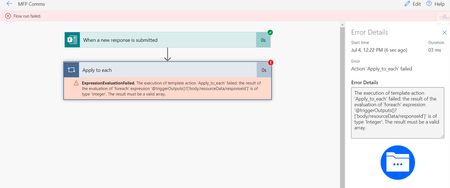
- Jul 04, 2021Don't use a template to build this flow which will put in that first apply to each which is not needed and usually causes problems. Build it from new going straight from When a new response is submitted to get response details.


So I was doing all of this myself and ran into several issues that eventually I figured out and resolved, so I want to give everyone on this thread and those that may arrive here in the future this heads up. I'll provide my way of doing it and pitfalls of doing it the way that was originally suggested:
1. Parse JSON - this can be used exactly as was originally suggested, however it has a limited relevance/usage capability, as I will explain later.
How it is set up is that you will have the form response object for the question you asked on your form that told them to "Upload Documentation", is what I named mine and how I will refer to that going forward. The schema provided was correct, though perhaps had some unnecessary attributes and lacking in others. The key ones are size, name, link, and id.
{
  "type": "array",
  "items": {
    "type": "object",
    "properties": {
      "name": {
        "type": "string"
      },
      "link": {
        "type": "string"
      },
      "id": {
        "type": "string"
      },
      "type": {},
      "size": {
        "type": "integer"
      },
      "referenceId": {
        "type": "string"
      },
      "driveId": {
        "type": "string"
      },
      "status": {
        "type": "integer"
      },
      "uploadSessionUrl": {}
    },
    "required": [
      "name",
      "link",
      "id",
      "type",
      "size",
      "referenceId",
      "driveId",
      "status",
      "uploadSessionUrl"
    ]
  }
}
Where the ability to use this is advantageous is because "link" in the output has the full path to where MS Forms is storing your files. Where it breaks down is that most objects you would implement to get that file require the relative path, not the absolute one, so you would have to do string manipulation and/or concatenation with the name attribute to form a URL, and this does not seem to work in any of the "Get file content using path" methods. So I went on to do Step 2.
2. Add a SharePoint "List Folder" object. I found that the URL in the "Parse JSON" "link" property went to our Teams site, but this will be wherever your MS Forms are being hosted and could vary by your setup/institution. If you add your MS Form to a group, it would likely appear on the group's Teams site, so if you intend to make your form available to a group to edit, do this first, as it will affect both the path where attachments are stored, and the Form ID your workflow uses for getting form responses. For us, the path where attachments were stored was baseURL/teams/groupname (as opposed to baseURL/sites/somesitename that others might get if MS Forms was set up to communicate with another SharePoint site).
Files were being saved to the relative path of /Shared Documents/Apps/Microsoft Forms/FormName/QuestionName, so this became the File Identifier. It does not need to be drilled down to a specific file. The file picker can also aid with drilling down to the path. You do not need to concatenate in a file name, here - just the folder will do.
3. Apply to each. You will need to iterate the "List Folder" object's output, and so the "output from previous steps" is the body of the List Folder: body('List_folder')
This will allow access to the properties of each individual file:
- Size: in KB
- Path: relative path to the file, including its name, no URI-encoding (for use in "Get file content using path" methods)
- Name: file name only
- ID: relative path to the file, including its name, URI-encoded (for use in "Delete file" method)
4. Condition: Is the File Size greater than zero --
item()?['Size'] greater than 0
This is needed because occasionally a temporary file of 0 KB is created and left behind, and if the loop hits that file and the "Get file content using path" method in the next step attempts to grab it, it will not be able to and the workflow will go on forever, forever attempting to retrieve a 0 KB file.
Note: All remaining steps must be placed in the "Yes" branch of this condition.
5. Use SharePoint's "Get file content using path" method.
The example earlier in this thread was to use the OneDrive "Get file content using path" method by concatenating the "Parse JSON" "name" attribute with a relative URL that is manually typed in, using first(body('Parse_JSON')). There are multiple issues with this:
- If you aren't looping through the "Parse JSON" object, you will only ever get the first file name available. This is fine if you are only getting 1 file, but it will not work for a real-world scenario where you allow multiple files to be attached.
- Even if you looped through the "Parse JSON" and concatenated item()?['name'] to the end of a manually typed relative URL, it would not accept it.
Here are the attempts, if you were using "Parse JSON":
concat('%2FShared%20Documents%2FApps%2FMicrosoft%20Forms%2FMY20AWESOME%20FORM%2FUpload%20Documentation%2F',item()?['name'])
concat('%2FApps%2FMicrosoft%20Forms%2FMY20AWESOME%20FORM%2FUpload%20Documentation%2F',item()?['name'])
concat('/Shared Documents/Apps/Microsoft Forms/MY AWESOME FORM/Upload Documentation/',item()?['name'])
concat('/Apps/Microsoft Forms/MY AWESOME FORM/Upload Documentation/',item()?['name'])
(It would be item()?['Name'] using "List Folder".)
I saw in the example on this thread that it started with /Apps, but my URL starts with /Shared Documents. I thought this was just a difference in setup, but I since was told by a Microsoft person that omitting /Shared Documents might have actually been the way to go. I tried this, however, and got no joy.
The above attempts will give you the error "The resource could not be found." using the OneDrive "Get file content using path" method and will give you either "File not found" or "Route did not match" when using SharePoint's "Get file content using path" method. You can't "concat" your way to a happy ending - at least, using the object method directly, as an expression. And even if you just type the path and then add in the item()?['name'] as an expression at the end, it did not work for me. Perhaps if it was put into a Compose or variable ahead of the object, maybe then it might work, either with or without the /Shared Documents part. But after having enough of this, I found that there's something even easier.
When you have the "List folder" method, you can access item()?['Path'] within the "Apply to each". This is the non-URI-encoded relative path to the file and it works flawlessly. Just put that, and ONLY that for the File Path: item()?['Path']
6. Use SharePoint's "Add attachment" method.
Use the Site address and List Name where the list resides - this is not likely to be the same as your site containing the attachments, so don't go in with blinders and automatically put in the wrong site, or when you go to look for your list, it won't be there. Pick the right site for where your list is where you are creating items.
The "Id" is the ID of the list item from your "Create item" you did earlier. Get its output from the dynamic content.
File Name is item()?['Name'] -- this is the file name property from the item in the "List Folder" method that we are looping through.
File Content is the "File Content" from the output of the "Get file content using path" method, accessible in the dynamic content. It will appear as "Body" in the textbox when selected.
7. Use SharePoint's "Delete file" method.
This is to remove any files that were uploaded at the previous location and prevent the next form run from causing your workflow to grab files from previous runs and add them to new list items - we do not want that. Instead, clearing out the files is a necessity so we only grab what was uploaded and is for that particular item.
Site address: the same URL from Step 5, where MS Forms attachments are being uploaded
File identifier: item()?['ID']
The "ID" for the "List Folder" object is the URI-encoded path, including file name, to the file. It is not the same as the ID in "Parse JSON", which is a useless alphanumeric string that you cannot even use to grab the file with when doing methods that use an ID to get the object.
This "ID", in the "List Folder" object, is what this method needs in order to latch onto the file - much the same way as item()?['Path'] was used in the "Get file content using path" method earlier, in Step 5.
This should give everyone what they need in order to solve their concatenation and parsing issues and avoid the pitfalls of using "Parse JSON" with the OneDrive and SP methods in ways these methods will not accept, while you can give it the "Path" and "ID" in the methods above from "List Folder" and it will take them just fine.