Forum Discussion

Converting HTML to PDF - Inline-Block Elements Don't Work
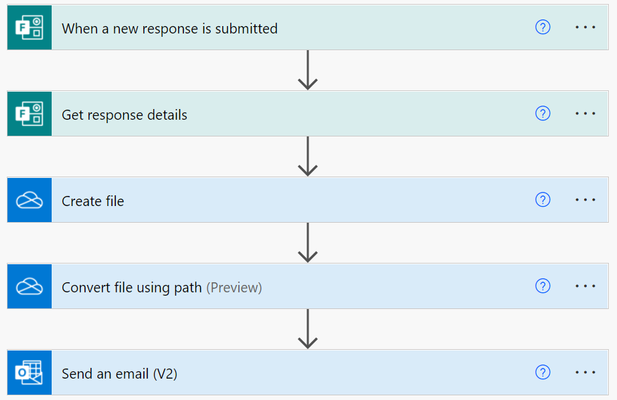


I honestly haven't tried that, but it does take away from the auto-generated portion of it. I know that I went through and created an HTML document by hand that had all of the correct formatting, and when I copied and pasted it into the Create a Document portion of my flow, a lot of the formatting didn't stick, so I've been working on recreating all of it in that box, to make sure what I have actually works. I'm just getting stuck on the getting the image and text to display in-line!
Any chance I could take a look at your flow, to see how you have it set up?
- jefmeyerFeb 08, 2022Iron Contributor
EDIT: updated HTML to include image variable.
McTwitch - the flow is basic right now, just trying to get it to work.
The Get File Content, retrieves the image and the next step loads it into a variable. In the Create File, we build the HTML string, along with the image variable, and save as HTML file to OneDrive. At this point, the HTML displays correctly and we can do a print to PDF from the browser and the PDF matches the HTML. The Convert File, we convert to PDF and then create the PDF in OneDrive, at which point, the text overlay is no longer displaying correctly. It seems like the conversion in Power is breaking the format. Here's a sample of the HTML we're generating (sorry for inline, can't attach .txt to the post):
<!DOCTYPE html>
<html><head><meta name="viewport" content="width=device-width, initial-scale=1">
<style>
.container {position: absolute; text-align: center;color: black;}
.bottom-left {position: absolute; bottom: 8px;left: 16px;}
.top-left {position: absolute;top: 8px;left: 16px;}
.top-right {position: absolute;top: 8px;right: 16px;}
.bottom-right {position: absolute;bottom: 8px;right: 16px;}
.centered {position: absolute;top: 50%;left: 50%;transform: translate(-50%, -50%);}
</style>
</head>
<body>
<h2>Image Text</h2>
<p>How to place text over an image:</p>
<div class="container"><img src="',variables('PDFImage'),'" alt="Snow" style="width:100%;"><div class="bottom-left">Bottom Left</div>
<div class="top-left">Top Left</div>
<div class="top-right">Top Right</div>
<div class="bottom-right">Bottom Right</div>
<div class="centered">Centered</div>
</div></body></html>Hope this helps.