Forum Discussion

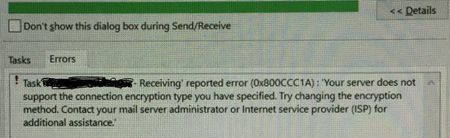
office 365 - Outlook error 0x800CCC1A

Hello Marvin Oco,
Outlook error 0x800ccc1a appears when there is an SSL issue. It is generally due to the wrong port number specified for SMTP or POP3 servers. The error doesn't allow you to perform tasks like opening and sending emails on your Outlook client.
However, the error can also appear when there's a synchronization issue between the incoming and outgoing servers. The following are some causes for the error to occur,
Incorrect port numbers
Missing or corrupt Outlook .PST file
Damaged Outlook Profile
In order to fix the office 365 - Outlook error 0x800CCC1A, you can follow the steps below,
Reconfigure SSL Encryption settings in Outlook:
- Firstly, open your Outlook account and click on File from the main menu.
- Now, click the Account Settings dropdown, and click Account Settings.
- Next, click on the email account in the Account Settings window, and then click Change.
- Then, click on More Settings in the Change Accounts window.
- Now, click the Advanced tab in the dialog box and untick the checkbox named "This server requires an encrypted connection (SSL)."
Note: If you want to keep your server connection encrypted, then change the port numbers for the incoming (POP/IMAP) and outgoing (SMTP) servers.
- Next, click Next, choose Finish, and then click Close.
- Finally, restart your Outlook application and check whether the issue is resolved.
Repair Damaged Outlook profile(Corrupted PST file):
A corrupted PST file might result in the Outlook 0x800ccc1a send/receive error. You must use the Microsoft built-in Scanpst.exe tool to repair the corrupt PST file,
- Firstly, browse your Office Installation folder and locate Scanpst.exe,
Outlook 2019: C:\Program Files (x86)\Microsoft Office\root\Office16
Outlook 2016: C:\Program Files (x86)\Microsoft Office\root\Office16
Outlook 2013: C:\Program Files (x86)\Microsoft Office\Office15
- Now, double-click the SCANPST file to Execute it.
- Then, click Browse to select your PST file in a dialog box that appears.
- Next, click the Start button to scan the PST file for corruption errors.
- Now, If any errors are reported after completing the scan process, click Repair to fix those errors.
- Lastly, after the repair process, click OK for the changes to take effect.
Perform Windows System File Checker:
- Firstly, click on Start, type cmd, and a command prompt will appear
- Now, right-click on Command Prompt to open with Admin rights.
- Then, type the below command and press Enter to proceed:
SFC /scannow
Note: You will have to wait until the process complete
- Lastly, restart MS Outlook.
I hope the fixes above help you troubleshoot the issue in Outlook. However, if the issue persists, you can update it here.
---------------------------
Regards,
Austin_M