Forum Discussion

Sandy1man
Feb 10, 2026Copper Contributor
Macro Dummy
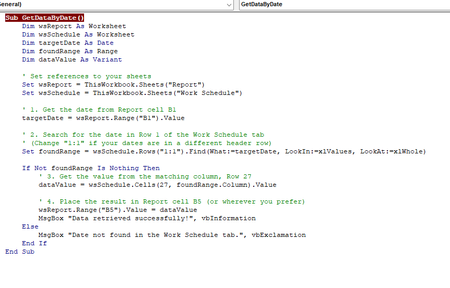
I have written a Macro and it doesn't run the way it is designed and I am having problems finding my error. How would I solicit help here? I've written Excel macros for years but this one has me ...

NikolinoDE
Feb 16, 2026Platinum Contributor
Based on the analysis of your VBA macro code, here's a breakdown of the key issues and how to fix them. Your code searches row 1 but says "Row 27" in the comment for data extraction, Make sure your row references are correct. Your code was searching for "letter L" instead of "row 1" due to lowercase "l".
Anyway, here's my attempt at a solution...
Sub GetDataByDate()
    Dim wsReport As Worksheet
    Dim wsSchedule As Worksheet
    Dim targetDate As Date
    Dim foundRange As Range

    ' Safety: Check worksheets exist
    On Error Resume Next
    Set wsReport = ThisWorkbook.Sheets("Report")
    Set wsSchedule = ThisWorkbook.Sheets("Work Schedule")
    On Error GoTo 0

    If wsReport Is Nothing Or wsSchedule Is Nothing Then
        MsgBox "Required worksheet missing!", vbCritical
        Exit Sub
    End If

    ' Validate date input
    If Not IsDate(wsReport.Range("B1").Value) Then
        MsgBox "Invalid date in Report!B1", vbExclamation
        Exit Sub
    End If

    targetDate = CDate(wsReport.Range("B1").Value)

    ' Search row 1 (fixed typo)
    Set foundRange = wsSchedule.Rows(1).Find(targetDate, LookIn:=xlValues)

    If foundRange Is Nothing Then
        MsgBox "Date not found in schedule header", vbExclamation
    Else
        ' Dynamic row reference (replace hardcoded 27)
        Dim dataRow As Long
        dataRow = 27  '← Change this number if needed

        wsReport.Range("B5").Value = wsSchedule.Cells(dataRow, foundRange.Column).Value
        MsgBox "Data copied successfully!", vbInformation
    End If
End Sub
Added Keys…
1. Flexible Date Handling
Added CDate() to standardize date formats during comparison
2. Error Prevention
- Checks worksheet existence before proceeding
- Validates date input before search
- Clear error messages for troubleshooting
3. Maintainability
- Centralized dataRow variable (change once, update everywhere)
- Clear comments explaining each step
Your Actions…
- Replace dataRow = 27 with your actual target row number
- Test with Ctrl+Break to enter debug mode and step through
- Add Application.ScreenUpdating = False at start and True at end for faster execution
My answers are voluntary and without guarantee!
Hope this will help you.