Forum Discussion

Why does excel data go from 2 decimals raw data to 7+ decimals when made into pivot table?
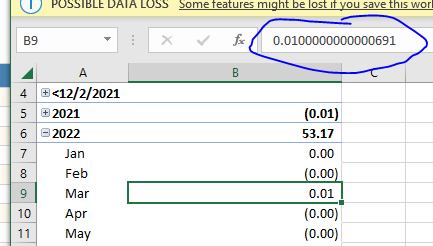

When you create a pivot table in Excel, the values displayed in the pivot table can sometimes appear to have more decimal places than the original raw data. This is typically due to the way Excel performs calculations and stores intermediate results.
Excel uses floating point arithmetic to perform calculations, which can result in small rounding errors. These rounding errors can accumulate during calculations and cause slight differences in the displayed values. The more calculations and aggregations involved in a pivot table, the greater the chance of these rounding errors occurring.
To address this issue and display the values in the pivot table with the desired number of decimal places, you can adjust the number formatting of the pivot table cells.
Here is how you can do it:
- Select the cells in the pivot table where you want to adjust the number formatting.
- Right-click and choose "Format Cells" from the context menu.
- In the Format Cells dialog box, go to the "Number" tab.
- Select the desired category (e.g., Number or Currency) and set the appropriate decimal places.
- Click "OK" to apply the formatting to the selected cells.
By adjusting the number formatting in the pivot table, you can control how many decimal places are displayed and align it with the original raw data.
It is worth noting that the actual underlying values in the pivot table may still contain the additional decimal places due to the rounding errors. However, by adjusting the number formatting, you can control how many decimal places are visible to the user.