Forum Discussion

VBC Macro worked well on my old laptop but did not work on my new laptop.
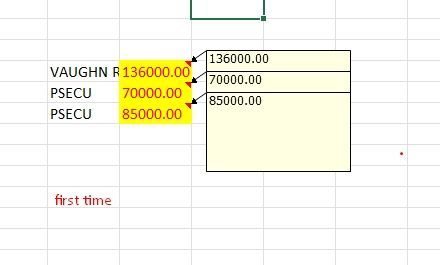

It seems like the issue you're encountering may be related to how Excel handles comments and their properties in the newer version or potentially due to some specific settings or configurations on your new laptop.
Here are a few troubleshooting steps you can try to resolve the issue:
- Check Macro Security Settings: Ensure that your macro security settings are set to allow macros to run. Sometimes, Excel may prevent macros from making changes to comments or other objects if the security settings are too restrictive.
- Verify Selection: Double-check that your selection is indeed a range of cells and not a single cell or other object. You can add some debug statements to your code to display the selected range address and confirm that it matches your expectations.
- Clear Existing Comments: Before adding or updating comments, you can try clearing any existing comments in the selected range. You can do this by iterating through each cell in the selection and deleting the comment if it exists.
- Use explicit reference to Comment.Text: Instead of relying on the default property, explicitly reference Comment.Text when setting the comment text. This can help ensure consistency across different versions of Excel.
- Test on Different Ranges: Try running your macro on different ranges of cells to see if the issue is specific to certain ranges or if it occurs consistently regardless of the selection.
Here's an updated version of your macro with some modifications:
Vba code is untested, please backup your file.
Sub ConvertTextToNoteAndFormat()
    Dim selectedRange As Range
    Dim cell As Range
    Dim commentText As String

    ' Check if a range is selected
    If TypeName(Selection) <> "Range" Then
        MsgBox "Please select a range of cells.", vbExclamation
        Exit Sub
    End If

    Set selectedRange = Selection

    ' Clear existing comments in the selected range
    On Error Resume Next
    selectedRange.ClearComments
    On Error GoTo 0

    For Each cell In selectedRange.Cells
        If Not IsEmpty(cell.Value) Then
            ' Add comment with the cell value
            cell.AddComment cell.Value

            ' Set comment text explicitly
            If Not cell.Comment Is Nothing Then
                cell.Comment.Text Text:=cell.Value & ""
            End If

            ' Set interior color to yellow
            cell.Interior.Color = RGB(255, 255, 0) ' Yellow

            ' Set font color to red
            cell.Font.Color = RGB(255, 0, 0) ' Red
        End If
    Next cell
End Sub
Try running the modified macro on different ranges of cells and see if it behaves consistently. If the issue persists, there may be other factors at play, such as Excel settings or configurations on your new laptop, which may require further investigation.The text was created with the help of AI.
My answers are voluntary and without guarantee!
Hope this will help you.
Was the answer useful? Mark as best response and like it!
This will help all forum participants.