Forum Discussion

DEJ_JP
Sep 28, 2023Copper Contributor
VBA Macro for splitting data is not going well.. Can I tune it ?
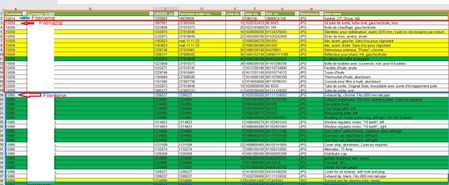
Dear All I have a code which is filtrering column 1 and then copying each dataset to another workbook and saving with the name of filtering. And it is doing it for the complete file in one go. ...
- Sep 29, 2023
Sure:
Sub Copy_To_Workbooks()
    'Note: This macro use the function LastRow
    Dim My_Range As Range
    Dim FieldNum As Long
    Dim FileExtStr As String
    Dim FileFormatNum As Long
    Dim CalcMode As Long
    Dim ViewMode As Long
    Dim ws2 As Worksheet
    Dim MyPath As String
    Dim Lrow As Long
    Dim cell As Range
    Dim CCount As Long
    Dim WSNew As Worksheet
    Dim ErrNum As Long

    'Set filter range on ActiveSheet: A1 is the top left cell of your filter range
    'and the header of the first column, D is the last column in the filter range.
    'You can also add the sheet name to the code like this :
    'Worksheets("Ark1").Range("A1:D" & LastRow(Worksheets("Ark1")))
    'No need that the sheet is active then when you run the macro when you use this.
    Set My_Range = Range("A1:S" & LastRow(ActiveSheet))
    My_Range.Parent.Select

    If ActiveWorkbook.ProtectStructure = True Or _
            My_Range.Parent.ProtectContents = True Then
        MsgBox "Sorry, not working when the workbook or worksheet is protected", _
            vbOKOnly, "Copy to new workbook"
        Exit Sub
    End If

    'This example filters on the first column in the range(change the field if needed)
    'In this case the range starts in A so Field:=1 is column A, 2 = column B, ......
    FieldNum = 15

    'Turn off AutoFilter
    My_Range.Parent.AutoFilterMode = False

    'Set the file extension/format
    If ActiveWorkbook.FileFormat = 56 Then
        FileExtStr = ".xls": FileFormatNum = 56
    Else
        FileExtStr = ".xlsx": FileFormatNum = 51
    End If

    'Change ScreenUpdating, Calculation, EnableEvents, ....
    With Application
        CalcMode = .Calculation
        .Calculation = xlCalculationManual
        .ScreenUpdating = False
        .EnableEvents = False
    End With
    ViewMode = ActiveWindow.View
    ActiveWindow.View = xlNormalView
    ActiveSheet.DisplayPageBreaks = False

    'Delete the sheet RDBLogSheet if it exists
    On Error Resume Next
    Application.DisplayAlerts = False
    Sheets("RDBLogSheet").Delete
    Application.DisplayAlerts = True
    On Error GoTo 0

    ' Add worksheet to copy/Paste the unique list
    Set ws2 = Worksheets.Add(After:=Sheets(Sheets.Count))
    ws2.Name = "RDBLogSheet"

    'Fill in the path\folder where you want to save the files
    MyPath = ThisWorkbook.Path

    'Add a slash at the end if the user forget it
    If Right(MyPath, 1) <> "\" Then
        MyPath = MyPath & "\"
    End If

    With ws2
        'first we copy the Unique data from the filter field to ws2
        My_Range.Columns(FieldNum).AdvancedFilter _
            Action:=xlFilterCopy, _
            CopyToRange:=.Range("A3"), Unique:=True

        'loop through the unique list in ws2 and filter/copy to a new sheet
        Lrow = .Cells(Rows.Count, "A").End(xlUp).Row
        For Each cell In .Range("A4:A" & Lrow)
            'Filter the range
            My_Range.AutoFilter Field:=FieldNum, Criteria1:="=" & _
            Replace(Replace(Replace(cell.Value, "~", "~~"), "*", "~*"), "?", "~?")

            'Check if there are no more then 8192 areas(limit of areas)
            CCount = 0
            On Error Resume Next
            CCount = My_Range.Columns(1).SpecialCells(xlCellTypeVisible) _
            .Areas(1).Cells.Count
            On Error GoTo 0
            If CCount = 0 Then
                MsgBox "There are more than 8192 areas for the value : " & cell.Value _
                    & vbNewLine & "It is not possible to copy the visible data." _
                    & vbNewLine & "Tip: Sort your data before you use this macro.", _
                    vbOKOnly, "Split in worksheets"
            Else
                'Add new workbook with one sheet
                Set WSNew = Workbooks.Add(xlWBATWorksheet).Worksheets(1)

                'Copy/paste the visible data to the new workbook
                My_Range.SpecialCells(xlCellTypeVisible).Copy
                With WSNew.Range("O1")
                    ' Paste:=8 will copy the columnwidth in Excel 2000 and higher
                    ' Remove this line if you use Excel 97
                    .PasteSpecial Paste:=8
                    .PasteSpecial xlPasteValues
                    .PasteSpecial xlPasteFormats
                    Application.CutCopyMode = False
                    .Select
                End With

                'Save the file in the new folder and close it
                On Error Resume Next
                WSNew.Parent.SaveAs MyPath & _
                cell.Value & FileExtStr, FileFormatNum
                If Err.Number > 0 Then
                    Err.Clear
                    ErrNum = ErrNum + 1

                    WSNew.Parent.SaveAs MyPath & _
                        "Error_" & Format(ErrNum, "0000") & FileExtStr, FileFormatNum

                    .Cells(cell.Row, "B").Formula = "=Hyperlink(""" & MyPath & _
                        "Error_" & Format(ErrNum, "0000") & FileExtStr & """)"

                    .Cells(cell.Row, "A").Interior.Color = vbRed
                Else
                    .Cells(cell.Row, "B").Formula = _
                        "=Hyperlink(""" & MyPath & cell.Value & FileExtStr & """)"
                End If

                WSNew.Parent.Close False
                On Error GoTo 0
            End If

            'Show all the data in the range
            My_Range.AutoFilter Field:=FieldNum
        Next cell

        .Cells(1, "A").Value = "Red cell: can't use the Unique name as file name"
        .Cells(1, "B").Value = "Created Files (Click on the link to open a file)"
        .Cells(3, "A").Value = "Unique Values"
        .Cells(3, "B").Value = "Full Path and File name"
        .Cells(3, "A").Font.Bold = True
        .Cells(3, "B").Font.Bold = True
        .Columns("A:B").AutoFit
    End With

    'Turn off AutoFilter
    My_Range.Parent.AutoFilterMode = False

    If ErrNum > 0 Then
        MsgBox "Rename every WorkSheet name that start with ""Error_"" manually" _
            & vbNewLine & "There are characters in the name that are not allowed" _
            & vbNewLine & "in a sheet name or the worksheet already exist."
    End If

    'Restore ScreenUpdating, Calculation, EnableEvents, ....
    My_Range.Parent.Select
    ActiveWindow.View = ViewMode
    ws2.Select
    With Application
        .ScreenUpdating = True
        .EnableEvents = True
        .Calculation = CalcMode
    End With
End Sub

Function LastRow(sh As Worksheet)
    On Error Resume Next
    LastRow = sh.Cells.Find(What:="*", _
        After:=sh.Range("A1"), _
        Lookat:=xlPart, _
        LookIn:=xlValues, _
        SearchOrder:=xlByRows, _
        SearchDirection:=xlPrevious, _
        MatchCase:=False).Row
    On Error GoTo 0
End Function

DEJ_JP
Sep 29, 2023Copper Contributor
Dear Hans
Thank you so much. Can you change the code so it will save the file in the same folder as the mainfile with the name of the filtered item (same name as now) just save the files in same folder as mainfile..

HansVogelaar
Sep 29, 2023MVP
Sure:
Sub Copy_To_Workbooks()
    'Note: This macro use the function LastRow
    Dim My_Range As Range
    Dim FieldNum As Long
    Dim FileExtStr As String
    Dim FileFormatNum As Long
    Dim CalcMode As Long
    Dim ViewMode As Long
    Dim ws2 As Worksheet
    Dim MyPath As String
    Dim Lrow As Long
    Dim cell As Range
    Dim CCount As Long
    Dim WSNew As Worksheet
    Dim ErrNum As Long

    'Set filter range on ActiveSheet: A1 is the top left cell of your filter range
    'and the header of the first column, D is the last column in the filter range.
    'You can also add the sheet name to the code like this :
    'Worksheets("Ark1").Range("A1:D" & LastRow(Worksheets("Ark1")))
    'No need that the sheet is active then when you run the macro when you use this.
    Set My_Range = Range("A1:S" & LastRow(ActiveSheet))
    My_Range.Parent.Select

    If ActiveWorkbook.ProtectStructure = True Or _
            My_Range.Parent.ProtectContents = True Then
        MsgBox "Sorry, not working when the workbook or worksheet is protected", _
            vbOKOnly, "Copy to new workbook"
        Exit Sub
    End If

    'This example filters on the first column in the range(change the field if needed)
    'In this case the range starts in A so Field:=1 is column A, 2 = column B, ......
    FieldNum = 15

    'Turn off AutoFilter
    My_Range.Parent.AutoFilterMode = False

    'Set the file extension/format
    If ActiveWorkbook.FileFormat = 56 Then
        FileExtStr = ".xls": FileFormatNum = 56
    Else
        FileExtStr = ".xlsx": FileFormatNum = 51
    End If

    'Change ScreenUpdating, Calculation, EnableEvents, ....
    With Application
        CalcMode = .Calculation
        .Calculation = xlCalculationManual
        .ScreenUpdating = False
        .EnableEvents = False
    End With
    ViewMode = ActiveWindow.View
    ActiveWindow.View = xlNormalView
    ActiveSheet.DisplayPageBreaks = False

    'Delete the sheet RDBLogSheet if it exists
    On Error Resume Next
    Application.DisplayAlerts = False
    Sheets("RDBLogSheet").Delete
    Application.DisplayAlerts = True
    On Error GoTo 0

    ' Add worksheet to copy/Paste the unique list
    Set ws2 = Worksheets.Add(After:=Sheets(Sheets.Count))
    ws2.Name = "RDBLogSheet"

    'Fill in the path\folder where you want to save the files
    MyPath = ThisWorkbook.Path

    'Add a slash at the end if the user forget it
    If Right(MyPath, 1) <> "\" Then
        MyPath = MyPath & "\"
    End If

    With ws2
        'first we copy the Unique data from the filter field to ws2
        My_Range.Columns(FieldNum).AdvancedFilter _
            Action:=xlFilterCopy, _
            CopyToRange:=.Range("A3"), Unique:=True

        'loop through the unique list in ws2 and filter/copy to a new sheet
        Lrow = .Cells(Rows.Count, "A").End(xlUp).Row
        For Each cell In .Range("A4:A" & Lrow)
            'Filter the range
            My_Range.AutoFilter Field:=FieldNum, Criteria1:="=" & _
            Replace(Replace(Replace(cell.Value, "~", "~~"), "*", "~*"), "?", "~?")

            'Check if there are no more then 8192 areas(limit of areas)
            CCount = 0
            On Error Resume Next
            CCount = My_Range.Columns(1).SpecialCells(xlCellTypeVisible) _
            .Areas(1).Cells.Count
            On Error GoTo 0
            If CCount = 0 Then
                MsgBox "There are more than 8192 areas for the value : " & cell.Value _
                    & vbNewLine & "It is not possible to copy the visible data." _
                    & vbNewLine & "Tip: Sort your data before you use this macro.", _
                    vbOKOnly, "Split in worksheets"
            Else
                'Add new workbook with one sheet
                Set WSNew = Workbooks.Add(xlWBATWorksheet).Worksheets(1)

                'Copy/paste the visible data to the new workbook
                My_Range.SpecialCells(xlCellTypeVisible).Copy
                With WSNew.Range("O1")
                    ' Paste:=8 will copy the columnwidth in Excel 2000 and higher
                    ' Remove this line if you use Excel 97
                    .PasteSpecial Paste:=8
                    .PasteSpecial xlPasteValues
                    .PasteSpecial xlPasteFormats
                    Application.CutCopyMode = False
                    .Select
                End With

                'Save the file in the new folder and close it
                On Error Resume Next
                WSNew.Parent.SaveAs MyPath & _
                cell.Value & FileExtStr, FileFormatNum
                If Err.Number > 0 Then
                    Err.Clear
                    ErrNum = ErrNum + 1

                    WSNew.Parent.SaveAs MyPath & _
                        "Error_" & Format(ErrNum, "0000") & FileExtStr, FileFormatNum

                    .Cells(cell.Row, "B").Formula = "=Hyperlink(""" & MyPath & _
                        "Error_" & Format(ErrNum, "0000") & FileExtStr & """)"

                    .Cells(cell.Row, "A").Interior.Color = vbRed
                Else
                    .Cells(cell.Row, "B").Formula = _
                        "=Hyperlink(""" & MyPath & cell.Value & FileExtStr & """)"
                End If

                WSNew.Parent.Close False
                On Error GoTo 0
            End If

            'Show all the data in the range
            My_Range.AutoFilter Field:=FieldNum
        Next cell

        .Cells(1, "A").Value = "Red cell: can't use the Unique name as file name"
        .Cells(1, "B").Value = "Created Files (Click on the link to open a file)"
        .Cells(3, "A").Value = "Unique Values"
        .Cells(3, "B").Value = "Full Path and File name"
        .Cells(3, "A").Font.Bold = True
        .Cells(3, "B").Font.Bold = True
        .Columns("A:B").AutoFit
    End With

    'Turn off AutoFilter
    My_Range.Parent.AutoFilterMode = False

    If ErrNum > 0 Then
        MsgBox "Rename every WorkSheet name that start with ""Error_"" manually" _
            & vbNewLine & "There are characters in the name that are not allowed" _
            & vbNewLine & "in a sheet name or the worksheet already exist."
    End If

    'Restore ScreenUpdating, Calculation, EnableEvents, ....
    My_Range.Parent.Select
    ActiveWindow.View = ViewMode
    ws2.Select
    With Application
        .ScreenUpdating = True
        .EnableEvents = True
        .Calculation = CalcMode
    End With
End Sub

Function LastRow(sh As Worksheet)
    On Error Resume Next
    LastRow = sh.Cells.Find(What:="*", _
        After:=sh.Range("A1"), _
        Lookat:=xlPart, _
        LookIn:=xlValues, _
        SearchOrder:=xlByRows, _
        SearchDirection:=xlPrevious, _
        MatchCase:=False).Row
    On Error GoTo 0
End Function- DEJ_JPOct 03, 2023Copper ContributorHans.. You have been a great help. Works like a charm. THANK U !