Forum Discussion

Using a drop down to hide/unhide columns in a table (VBA Code)
- Apr 22, 2024
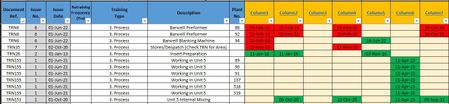
Michael1835 To show/hide columns based on a selected employee, first open Name Manager and define a named range for the list of employees (referring to the applicable column headers). For example, define a new name called Employee_List that refers to: =Sheet1!$I$6:$DD$6. Next, create a Data Validation List in cell G6, with Source: =Employee_List. Then, open the Visual Basic Editor and use the following code in the Worksheet_Change event of the applicable worksheet module (Sheet1, in this example):
Private Sub Worksheet_Change(ByVal Target As Range)

    Dim rgEmployee As Range
    Set rgEmployee = Me.Range("G2")

    If Not Intersect(Target, rgEmployee) Is Nothing Then

        Dim rgList As Range, str As String, n As Variant
        Set rgList = Range("Employee_List")
        str = rgEmployee.Value
        n = Application.Match(str, rgList, 0)

        If IsError(n) Then
            rgList.EntireColumn.Hidden = False
        Else
            rgList.EntireColumn.Hidden = True
            rgList.Cells(, n).EntireColumn.Hidden = False
        End If

    End If

End Sub
To filter rows based on the "Check Training Status" selection in cell D2, I highly recommend looking into the Range.AutoFilter method, which will vary slightly depending on if your data is setup as a worksheet range or an Excel table (ListObject). As an example, the following code demonstrates how this could be achieved with an Excel table (ListObject), where the "Training Records out of Date" and "Retraining Required" columns are part of the table:
Sub CheckTrainingStatus()

    Dim tbl As ListObject, x As Long, y As Long
    Set tbl = Sheet1.ListObjects("Table1")
    x = tbl.ListColumns("Training Records out of Date").Index
    y = tbl.ListColumns("Retraining Required").Index

    With tbl.Range
        Select Case Sheet1.Range("D2").Value
            Case "Refresh"
                .AutoFilter Field:=x
                .AutoFilter Field:=y, Criteria1:="<>0"
            Case "Obsolete"
                .AutoFilter Field:=x, Criteria1:="<>0"
                .AutoFilter Field:=y
            Case Else 'All or blank
                .AutoFilter Field:=x
                .AutoFilter Field:=y
        End Select
    End With

End Sub
To apply the filter to the selected employee only, modify the worksheet formulas used in columns DE and DF to reference the matching column only. For example, if the original formula in cell DE7 was:
=SUM(I7:DD7)...you could change it to:
=IF(ISBLANK($G$2), SUM(I7:DD7), INDEX(I7:DD7, MATCH($G$2, Employee_List, 0)))Then, modify the Worksheet_Change event to call CheckTrainingStatus as needed. For example:
Private Sub Worksheet_Change(ByVal Target As Range)

    Dim rgEmployee As Range
    Set rgEmployee = Me.Range("G2")

    If Not Intersect(Target, rgEmployee) Is Nothing Then

        Dim rgList As Range, str As String, n As Variant
        Set rgList = Range("Employee_List")
        str = rgEmployee.Value
        n = Application.Match(str, rgList, 0)

        If IsError(n) Then
            rgList.EntireColumn.Hidden = False
        Else
            rgList.EntireColumn.Hidden = True
            rgList.Cells(, n).EntireColumn.Hidden = False
        End If

        Call CheckTrainingStatus

    ElseIf Not Intersect(Target, Me.Range("D2")) Is Nothing Then

        Call CheckTrainingStatus

    End If

End Sub
Note: this is an example only, intended to help point you in the right direction. If your data is not formatted as an Excel table (ListObject), additional steps may be required to identify the AutoFilter Range and/or the Field Numbers of the columns to be filtered.

Michael1835 To show/hide columns based on a selected employee, first open Name Manager and define a named range for the list of employees (referring to the applicable column headers). For example, define a new name called Employee_List that refers to: =Sheet1!$I$6:$DD$6. Next, create a Data Validation List in cell G6, with Source: =Employee_List. Then, open the Visual Basic Editor and use the following code in the Worksheet_Change event of the applicable worksheet module (Sheet1, in this example):
Private Sub Worksheet_Change(ByVal Target As Range)

    Dim rgEmployee As Range
    Set rgEmployee = Me.Range("G2")

    If Not Intersect(Target, rgEmployee) Is Nothing Then

        Dim rgList As Range, str As String, n As Variant
        Set rgList = Range("Employee_List")
        str = rgEmployee.Value
        n = Application.Match(str, rgList, 0)

        If IsError(n) Then
            rgList.EntireColumn.Hidden = False
        Else
            rgList.EntireColumn.Hidden = True
            rgList.Cells(, n).EntireColumn.Hidden = False
        End If

    End If

End Sub
To filter rows based on the "Check Training Status" selection in cell D2, I highly recommend looking into the Range.AutoFilter method, which will vary slightly depending on if your data is setup as a worksheet range or an Excel table (ListObject). As an example, the following code demonstrates how this could be achieved with an Excel table (ListObject), where the "Training Records out of Date" and "Retraining Required" columns are part of the table:
Sub CheckTrainingStatus()

    Dim tbl As ListObject, x As Long, y As Long
    Set tbl = Sheet1.ListObjects("Table1")
    x = tbl.ListColumns("Training Records out of Date").Index
    y = tbl.ListColumns("Retraining Required").Index

    With tbl.Range
        Select Case Sheet1.Range("D2").Value
            Case "Refresh"
                .AutoFilter Field:=x
                .AutoFilter Field:=y, Criteria1:="<>0"
            Case "Obsolete"
                .AutoFilter Field:=x, Criteria1:="<>0"
                .AutoFilter Field:=y
            Case Else 'All or blank
                .AutoFilter Field:=x
                .AutoFilter Field:=y
        End Select
    End With

End Sub
To apply the filter to the selected employee only, modify the worksheet formulas used in columns DE and DF to reference the matching column only. For example, if the original formula in cell DE7 was:
=SUM(I7:DD7)
...you could change it to:
=IF(ISBLANK($G$2), SUM(I7:DD7), INDEX(I7:DD7, MATCH($G$2, Employee_List, 0)))
Then, modify the Worksheet_Change event to call CheckTrainingStatus as needed. For example:
Private Sub Worksheet_Change(ByVal Target As Range)

    Dim rgEmployee As Range
    Set rgEmployee = Me.Range("G2")

    If Not Intersect(Target, rgEmployee) Is Nothing Then

        Dim rgList As Range, str As String, n As Variant
        Set rgList = Range("Employee_List")
        str = rgEmployee.Value
        n = Application.Match(str, rgList, 0)

        If IsError(n) Then
            rgList.EntireColumn.Hidden = False
        Else
            rgList.EntireColumn.Hidden = True
            rgList.Cells(, n).EntireColumn.Hidden = False
        End If

        Call CheckTrainingStatus

    ElseIf Not Intersect(Target, Me.Range("D2")) Is Nothing Then

        Call CheckTrainingStatus

    End If

End Sub
Note: this is an example only, intended to help point you in the right direction. If your data is not formatted as an Excel table (ListObject), additional steps may be required to identify the AutoFilter Range and/or the Field Numbers of the columns to be filtered.
