Forum Discussion

Using a drop down to hide/unhide columns in a table (VBA Code)
- Apr 22, 2024
Michael1835 To show/hide columns based on a selected employee, first open Name Manager and define a named range for the list of employees (referring to the applicable column headers). For example, define a new name called Employee_List that refers to: =Sheet1!$I$6:$DD$6. Next, create a Data Validation List in cell G6, with Source: =Employee_List. Then, open the Visual Basic Editor and use the following code in the Worksheet_Change event of the applicable worksheet module (Sheet1, in this example):
Private Sub Worksheet_Change(ByVal Target As Range)

    Dim rgEmployee As Range
    Set rgEmployee = Me.Range("G2")

    If Not Intersect(Target, rgEmployee) Is Nothing Then

        Dim rgList As Range, str As String, n As Variant
        Set rgList = Range("Employee_List")
        str = rgEmployee.Value
        n = Application.Match(str, rgList, 0)

        If IsError(n) Then
            rgList.EntireColumn.Hidden = False
        Else
            rgList.EntireColumn.Hidden = True
            rgList.Cells(, n).EntireColumn.Hidden = False
        End If

    End If

End Sub
To filter rows based on the "Check Training Status" selection in cell D2, I highly recommend looking into the Range.AutoFilter method, which will vary slightly depending on if your data is setup as a worksheet range or an Excel table (ListObject). As an example, the following code demonstrates how this could be achieved with an Excel table (ListObject), where the "Training Records out of Date" and "Retraining Required" columns are part of the table:
Sub CheckTrainingStatus()

    Dim tbl As ListObject, x As Long, y As Long
    Set tbl = Sheet1.ListObjects("Table1")
    x = tbl.ListColumns("Training Records out of Date").Index
    y = tbl.ListColumns("Retraining Required").Index

    With tbl.Range
        Select Case Sheet1.Range("D2").Value
            Case "Refresh"
                .AutoFilter Field:=x
                .AutoFilter Field:=y, Criteria1:="<>0"
            Case "Obsolete"
                .AutoFilter Field:=x, Criteria1:="<>0"
                .AutoFilter Field:=y
            Case Else 'All or blank
                .AutoFilter Field:=x
                .AutoFilter Field:=y
        End Select
    End With

End Sub
To apply the filter to the selected employee only, modify the worksheet formulas used in columns DE and DF to reference the matching column only. For example, if the original formula in cell DE7 was:
=SUM(I7:DD7)...you could change it to:
=IF(ISBLANK($G$2), SUM(I7:DD7), INDEX(I7:DD7, MATCH($G$2, Employee_List, 0)))Then, modify the Worksheet_Change event to call CheckTrainingStatus as needed. For example:
Private Sub Worksheet_Change(ByVal Target As Range)

    Dim rgEmployee As Range
    Set rgEmployee = Me.Range("G2")

    If Not Intersect(Target, rgEmployee) Is Nothing Then

        Dim rgList As Range, str As String, n As Variant
        Set rgList = Range("Employee_List")
        str = rgEmployee.Value
        n = Application.Match(str, rgList, 0)

        If IsError(n) Then
            rgList.EntireColumn.Hidden = False
        Else
            rgList.EntireColumn.Hidden = True
            rgList.Cells(, n).EntireColumn.Hidden = False
        End If

        Call CheckTrainingStatus

    ElseIf Not Intersect(Target, Me.Range("D2")) Is Nothing Then

        Call CheckTrainingStatus

    End If

End Sub
Note: this is an example only, intended to help point you in the right direction. If your data is not formatted as an Excel table (ListObject), additional steps may be required to identify the AutoFilter Range and/or the Field Numbers of the columns to be filtered.


SnowMan55 thanks for your reply. I have inputted the code but it doesn't appear to work at the moment.
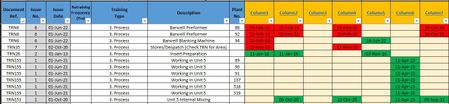
The controlling drop-down is on the same worksheet, this is how it looks with the rows and columns visible:
Here is the code with the const values updated:
A quick query, the rows end at DD but will excel understand "IJKLMNOPQRSTUVWXYZAAABAC etc..."?
Sorry I also need to add another drop down that will hide rows. Here is the layout:
The drop down in D2 has the following options:
"All" - Hide nothing
"Refresh" - hide rows that contain 0 in column DF
"Obsolete" - hide rows that contain 0 in column DE
I would like this to work in conjunction with the drop down for employee and on its own. So you can check for refresher/obsolete training for all or for a specific employee.
I understand that this is probably not possible as rows for other employees will show if refresher/obsolete training exists. So what would be most useful, if all is not achievable, is to be able to filter refresher/obsolete training for all employees.
Going back to my original query, filtering columns would work best if rows that do not contain any data are also hidden when the employee is select. I realise this I may be asking to much of excel here but I am new to VBA and I'm interested to find out it's capabilities and limits.
So to summarize:
Select employee, columns of other employees are hidden and rows that do not contain data are also hidden.
And/or
Select status of training and hide rows based on values in column's DE & DF or hide nothing for "All".
 SnowMan55Apr 20, 2024Bronze Contributor
<< I have inputted the code but it doesn't appear to work at the moment. >>
When your car does not work, is that all the information you tell the repair shop? I have to assume that the code hid columns that you did not expect (and hid nothing after column Z), because…
No, Excel (VBA) will not "understand" the intended use of the letters, so it does not know to use one character up through Z and then use two characters. (It's not Artificial Intelligence.) I'm surprised that you want to handle as many as 100 employees (in columnar form); the worksheet structure seems backwards. But this data would usually be best stored in a database anyway, not a spreadsheet.
The most straightforward way is to allow for two characters for each column identifier (permitting you to use this on many more columns, if needed), and trim any space from each pair of column letters. To do that, replace the previously-assigned Const statement for strCONTROLLED_COLUMNS with the multi-line one below, and replace the first two lines of the For loop with lines 6-7 shown here:Const strCONTROLLED_COLUMNS = "I J K L M N O P Q R S T U V W X Y Z " _ & "AAABACADAEAFAGAHAIAJAKALAMANAOAPAQARASATAUAVAWAXAYAZ" _ & "BABBBCBDBEBFBGBHBIBJBKBLBMBNBOBPBQBRBSBTBUBVBWBXBYBZ" _ & "CACBCCCDCECFCGCHCICJCKCLCMCNCOCPCQCRCSCTCUCVCWCXCYCZ" _ & "DADBDCDD" For in4RelativeColumn = 1 To Len(strCONTROLLED_COLUMNS) Step 2 strColumn = Trim$(Mid$(strCONTROLLED_COLUMNS, in4RelativeColumn, 2))
To your new request, I'm not going to bother with code to suppress empty rows. You should not be including empty rows inside your data anyway. But if you are "interested to find out [VBA's] capabilities and limits", you'll study the code below enough to glean the necessary changes to make that happen.
Just include the following block of code inside the same event handler (Worksheet_Change), after the existing code. The hiding of rows is independent of the hiding of columns.Const strTRAINING_STATUS_CELL_ADDR = "D2" Dim in4WkshtRow As Long Dim vntCellContent As Variant '---- Show/hide worksheet rows depending on the selected "training ' status". If Not Intersect(Target, Range(strTRAINING_STATUS_CELL_ADDR)) Is Nothing Then strSelection = Range(strTRAINING_STATUS_CELL_ADDR).Value in4WkshtRow = Cells.Find("*", SearchOrder:=xlByRows, _ SearchDirection:=xlPrevious).Row 'finds the last row with data Application.ScreenUpdating = False For in4WkshtRow = in4WkshtRow To Val(strROW_WITH_COL_HDRS) + 1 Step -1 If StrComp(strSelection, "All", vbTextCompare) = 0 Then Range("A" & in4WkshtRow).EntireRow.Hidden = False ElseIf StrComp(strSelection, "Refresh", vbTextCompare) = 0 Then vntCellContent = Range("DF" & in4WkshtRow).Value If IsEmpty(vntCellContent) Then '...ignore it. (Unfortunately, an empty cell passes the ' following IsNumeric test.) ElseIf IsNumeric(vntCellContent) Then If vntCellContent = 0 Then Range("A" & in4WkshtRow).EntireRow.Hidden = True End If End If ElseIf StrComp(strSelection, "Obsolete", vbTextCompare) = 0 Then vntCellContent = Range("DE" & in4WkshtRow).Value If IsEmpty(vntCellContent) Then '...ignore it. (Unfortunately, an empty cell passes the ' following IsNumeric test.) ElseIf IsNumeric(vntCellContent) Then If vntCellContent = 0 Then Range("A" & in4WkshtRow).EntireRow.Hidden = True End If End If End If Next in4WkshtRow Application.ScreenUpdating = True End IfNote that by design, the code does not unhide rows that were hidden for Refresh when Obsolete is selected, nor vice versa. Only All unhides (but again, you can figure out how to change that).
- Michael1835Apr 22, 2024Copper Contributor
Apologies for the lack of information SnowMan55
<<When your car does not work, is that all the information you tell the repair shop? I have to assume that the code hid columns that you did not expect (and hid nothing after column Z), because…>>
The code didn't hide anything, but lets just check I'm putting it in the right place. Here are the series of screens/steps taken for the first piece of code:
If I close this, nothing happens when I use the drop-down, nothing is hidden and if I hit "run sub" it prompts me for a macro?
I've inputted the new code and this is what I have, hopefully it is right? Nothing is hidden from the other drop-down either unfortunately.
I am trying to get this working on Sheet15(Template) before applying to other sheets.
I have a feeling I'm doing something wrong here... I appreciate this may be frustrating and thank you for your time.
- SnowMan55Apr 22, 2024Bronze Contributor
Your first screenshot shows the cause of your problem (no columns were hidden). Remember that in my first post I wrote "Put the following code into the Worksheet_Change event handler for the worksheet that contains…". The two dropdowns at the top of your (code) window show that you placed the code in the (General) (Declarations) section.
So make a temporary copy somewhere of all the code you have put in. Then:
- Delete everything from the (General) (Declarations) section.*
- Open the left dropdown (which shows you the objects that this code module can deal with) and select Worksheet. (The VB Editor then by default selects SelectionChange in the right dropdown and creates an empty event handler for that event. That event handler does not hurt anything, and you can optionally delete it later.)
- Open the right dropdown (which shows you the events to which the object at left can respond) and select Change. (The VB Editor then creates an empty event handler for the Worksheet_Change event.)
- Paste your copy of the code there.
This is approximately what you should see after step 3 (without the green comments, of course).
(Whether you see all procedures/code sections in the window, like this, or just one procedure/code section depends on which of the two buttons at the lower left of the code window is selected. If you see all at once, the content of the two dropdowns at the top of the window varies depending upon where the cursor is located.)
* In the future, you may need to put declarations of module-scope constants and/or variables and/or external routines here in the Declarations section (as it is usually called). But something that I strongly recommend you include here now is an "Option Explicit" statement, shown in my screenshot above. This tells the VBA interpreter (~compiler) that any variable name that it does not recognize should be flagged as a compile error; that will both identify variables which you have not declared (usually specifying a data type), and variables that you declared but for which you simply mistyped the name when trying to use them.
You can get the VB Editor to automatically include an Option Explicit statement in any new code module. From the Tools | Options… menu, you get the Options dialog:
Homework assignments: Read the first two-thirds of this tutorial for an overview of events in VBA. (I dislike that this author calls event handlers "macros". They are two different types of procedures.) Some YouTube videos on VBA events may be a good source of info, but I have not viewed any. And bookmark this site as an Excel reference.