Forum Discussion

Unprotecting a workbook


Hi
The screenshot shows that your workbook is currently not protected because the dialog only appears when you are going to protect the workbook.
Thank you for this, Detlef.
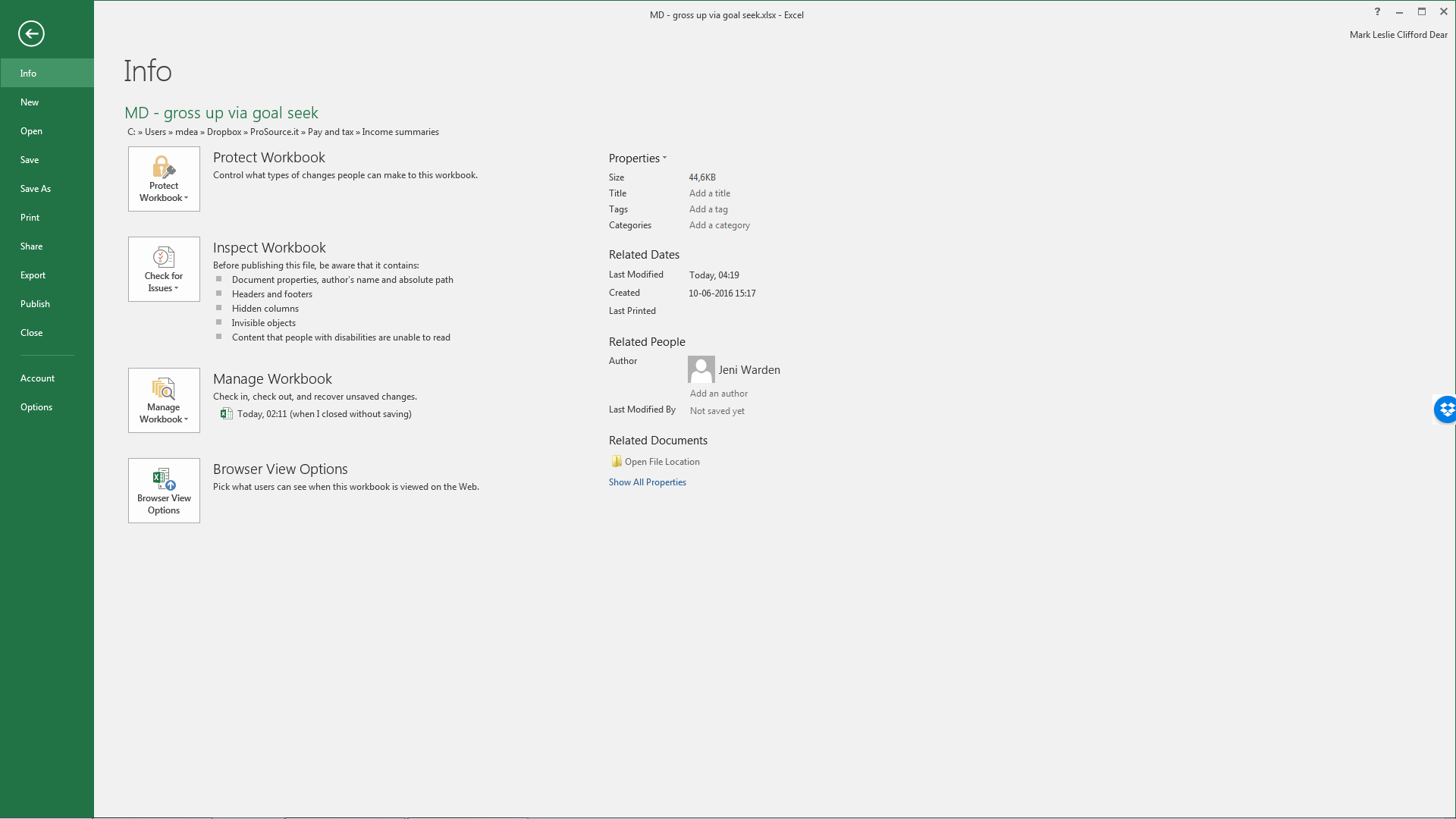
The highlighted information visible via File -> Protect Workbook shows that it is - please see attached screengrab 'Protected.png'. The 'Protect Structrure and Windows' dialog appears when I click on the (currently highlighted) 'Protect Workbook Structure' option, and also of course when I choose Review -> Protect Workbook from the Ribbon.
Furthermore, I am currently prevented from (eg) freezing panes.
Thank you again for your response.
Cheers MD.

- Detlef_LewinJul 09, 2017Silver Contributor
Hi Mark
When I am going via File -> Protect Workbook in a protected workbook and click on "Protect Workbook Structure" the workbook is no longer protected - provided that no password was used.
- AnonymousJul 09, 2017Not applicable
Thank you for this, Detlef.
The behavior of this workbook is weirdly inconsistent. Basically, the indications in File -> Protect Workbook simply do not match the indications in the Ribbon.When, for testing purposes, I add the structure protection via the Ribbon, then replicating what you described above will indeed appear to remove the protection, in the sense that the highlighting will disappear from the Ribbon icon. But I still cannot freeze panes, and the protection is still apparent in File -> Protect Workbook.
So I think this is a file issue, not an application issue. Saving new copies and/or exporting to a different format has not yet helped. If I find a solution I shall post it here of course.
Thank you both for your time this evening / (very) early morning.
With thanks and best wishes
Cheers MD.- AnonymousJul 09, 2017Not applicable
Folks
It's fixed, but I hesitate to call it a solution - more like black magic!
I simply:
1. opened the .xlsx file in LibreOffice on the Linux laptop from the local machine dropbox folder
2. froze the panes as required
3. saved and closed the file in the local dropbox folder again
4. waited for the dropbox folder on the W7 machine to synchronize
5. opened the file in Excel 2016 on the PC
6. confirmed via File menu that all was good -
which it is. All menus, icons and buttons now behave as they should. See attached. I have no idea what was going on there, but it seems to have stopped now.
Thank you again for your kind attention.
Cheers MD.