Forum Discussion

Transfer of Data to Different sheet

Hi Zack05
you could use VLOOKUP to search your script tracker list for the date and get back the name.
Example:
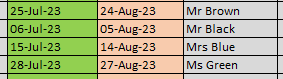
This is my script tracker sheet
And here is the planner sheet with the formulas:
In B3: =IFERROR(VLOOKUP(B2,Script_Tracker!$B$2:$C$5,2,FALSE),"")
and then copy the formula below all other date fields. As you can see, in L2 it will find a name:
But be warned:
VLOOKUP will only get you the first name in the list. If you have multiple names at the same date, you will see only the first one.
Kind regards,
Martin

Thank you for the above, how would i combat the issue around multiple names at the same date? which will certainly occur.
- Martin_WeissJul 07, 2023Bronze Contributor
Hi Zack05,
if you use Excel from Microsoft 365, you can use a combination of FILTER and COOSECOLS function.
Example formula in L3:
=IFERROR(CHOOSECOLS(FILTER(Script_Tracker!$A$2:$C$5,Script_Tracker!$B$2:$B$5=L2),3),"")
The FILTER part of the formula just gets the three columns A, B and C (Prep Date, Next Prep Date, Name) if the Next Prepdate ($B$2:$B$5 in my Script_Tracker sheet) equals to the date in L2
-> FILTER(Script_Tracker!$A$2:$C$5;Script_Tracker!$B$2:$B$5=L2)
As you just need the column with the Names (= Column C or column 3 in the filtered list), I use the CHOOSECOLS-function:
-> CHOOSECOLS(result of the FILTER function);3)
And to avoid errors for dates that do not have a name, I supress those errors with IFERROR
Just make sure, that you have enough lines to show all names below the date, otherwise you will get a #SPILL! error.
If you do not have Excel 365, unfortunately I do not have a proper solution for you.
Kind regards,
Martin