Forum Discussion

To build a dashboard in excel
 Aug 23, 2018
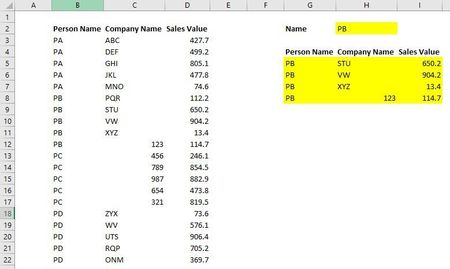
There are a couple of formulas that will let you do this.. but here is one that I learnt from someone (Sergei Baklan) on this board a few day back.
It avoids the use of an array formula which your CPU will thanks you for.
I've attached an example using something similar to what you posted showing it working. Hopefully it helps.
The formula used is this:
=IFERROR(INDEX(tbl_data[Person Name],AGGREGATE(15,6,(1/(tbl_data[Person Name]=$H$2)/NOT(ISBLANK(tbl_data[Person Name]))*ROW(tbl_data[Person Name])-ROW(tbl_data[[#Headers],[Person Name]])),ROW(A1))),"")

Personally, I would use a Pivot Table to show your Dashboard info. If you place your data in a table, add a column to duplicate the name (since it is in a table, Excel will use it as a column formula, and automatically apply it to each new row), and reference that table for your Pivot Table, set the Filters as the person name, the Rows as Name (the duplicated one) and Company, and Values as the Sales Value, it will give you what you want, with the exception of the person name on each row. If you do it this way, the dashboard is dynamic. It will expand or shrink based on the number of entries, and if you have multiple entries for one person and the same company, it will automatically add them together. Give this example a look, and see if it will work for you.

Thank you Bob..!