Forum Discussion

Ayush_Jadli
Sep 03, 2023Copper Contributor
Task In Excel
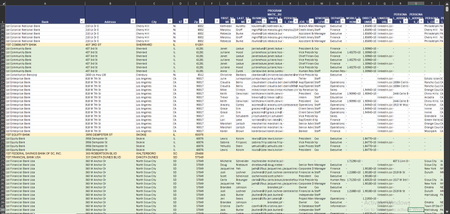
I have a task in Excel. I have to highlight some specific data, the task is: There are some rows which are: 1. Upper Case 2. Colored Light Gold (as can be seen in the image below) So I wan...

Ayush_Jadli
Sep 04, 2023Copper Contributor
I want to apply the formula only where the value is in upper case

NikolinoDE
Sep 04, 2023Platinum Contributor
To apply the conditional formatting formula only to rows where the value is in uppercase, you can modify the formula to check the case of the text in Column A before applying the formatting. Here are the steps:
Step 1: Conditional Formatting for Bank Name (Column A):
- Select the range of rows you want to apply formatting to, starting from the first row with uppercase text and light gold fill color.
- Go to the "Home" tab, click on "Conditional Formatting," and choose "New Rule."
- Choose "Use a formula to determine which cells to format."
- In the formula bar, enter the following formula to check if the Bank Name in the current row (Column A) matches the Bank Name in the first row (let's say the first row is row 2) and if the text in Column A is in uppercase:
=AND($A2=$A$2, EXACT($A2, UPPER($A2)))
This formula checks both if the Bank Name matches the first row and if it's in uppercase.
- Click on the "Format" button and set the formatting style you want (e.g., Light Green background). Click "OK" to confirm.
This modified formula will apply formatting only to rows where the Bank Name in Column A matches and is in uppercase. It ensures that the formatting is applied selectively based on your criteria. You can then create additional rules for other columns, if needed, following a similar approach.