Forum Discussion

Task In Excel
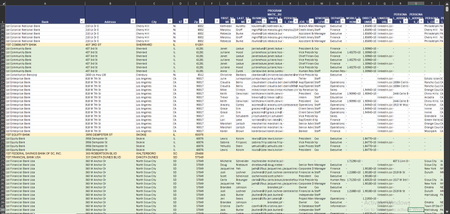

To achieve the task you have described in Excel 365, you can use conditional formatting with a formula that checks for similarity between rows and highlights them accordingly. You will need to use a combination of Excel functions to compare the values in the specified columns (Bank, Address, City, ST, Zip) for similarity.
Here are the steps to set up this conditional formatting:
- Select the Range: Select the range of cells where you want to apply this conditional formatting. It seems you want to apply this to the entire worksheet.
- Conditional Formatting: Go to the "Home" tab in Excel, and then click on "Conditional Formatting" in the ribbon.
- New Rule: Select "New Rule" from the dropdown menu.
- Use a Formula: In the "New Formatting Rule" dialog box, select "Use a formula to determine which cells to format."
- Enter the Formula: In the formula bar, enter the following formula:
=AND(ROW()>1, EXACT($A2, $A1), OR(EXACT($B2, $B1), EXACT($C2, $C1), EXACT($D2, $D1), EXACT($E2, $E1)))
This formula checks if:
- The row is not the first row (ROW() > 1).
- The Bank name in the current row (Column A) is exactly the same as the Bank name in the previous row (Column A).
- Either the Address, City, ST, or Zip in the current row matches the corresponding value in the previous row.
- Format: Click the "Format" button to specify the formatting you want for matching rows. You can choose the "Light Green" fill color.
- Apply: Click "OK" to apply the formatting.
- Done: Click "OK" again in the "New Formatting Rule" dialog box.
Now, Excel will highlight rows that match your criteria. Make sure to adjust the range you selected in step 1 based on your actual data. This conditional formatting rule will check for similarity in the specified columns and apply the formatting accordingly.
Remember to adjust the formula and rule as needed if you have additional columns or specific requirements for similarity matching.The text and steps were created with the help of AI.
My answers are voluntary and without guarantee!
Hope this will help you
Was the answer useful? Mark them as helpful!
This will help all forum participants.

- NikolinoDESep 04, 2023Platinum Contributor
To apply the conditional formatting formula only to rows where the value is in uppercase, you can modify the formula to check the case of the text in Column A before applying the formatting. Here are the steps:
Step 1: Conditional Formatting for Bank Name (Column A):
- Select the range of rows you want to apply formatting to, starting from the first row with uppercase text and light gold fill color.
- Go to the "Home" tab, click on "Conditional Formatting," and choose "New Rule."
- Choose "Use a formula to determine which cells to format."
- In the formula bar, enter the following formula to check if the Bank Name in the current row (Column A) matches the Bank Name in the first row (let's say the first row is row 2) and if the text in Column A is in uppercase:
=AND($A2=$A$2, EXACT($A2, UPPER($A2)))
This formula checks both if the Bank Name matches the first row and if it's in uppercase.
- Click on the "Format" button and set the formatting style you want (e.g., Light Green background). Click "OK" to confirm.
This modified formula will apply formatting only to rows where the Bank Name in Column A matches and is in uppercase. It ensures that the formatting is applied selectively based on your criteria. You can then create additional rules for other columns, if needed, following a similar approach.