Forum Discussion

Specifying manually entered data validation list entries as "Text"
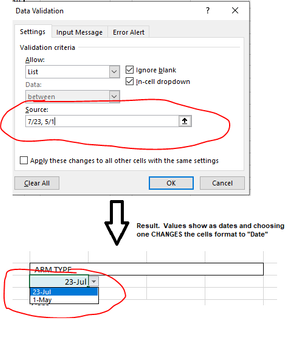
- Sep 01, 2022
I'd strongly recommend entering the list in a range; that is much easier to maintain.
But if you really prefer to specify it in the Source box, prefix each value with an apostrophe:
'7/23,'5/1

I'd strongly recommend entering the list in a range; that is much easier to maintain.
But if you really prefer to specify it in the Source box, prefix each value with an apostrophe:
'7/23,'5/1

Thank you. I tried the apostrophe as well and, unfortunately, it shows the apostrophe in the pull down.
For now, of course my goal is to learn to indicate that the number values I've entered are "Text" values. But I wonder what other capabilities exist in that input field. For example, I found a tip that a # after an individual cell reference will choose the "entire list" below that cell however much it may expand or shrink.
Do you know of any comprehensive description of what can be accomplished in the data validation input field? I haven't been able to find anything beyond the basics. Perhaps something of that nature would contain my answer and give me more insight on what else can be accomplished there.
- HansVogelaarSep 01, 2022MVP
Yes, the apostrophe will show up in the drop down list, and also in the formula bar after you select an item, but not in the cell itself.
If you don't like, that, you should really consider using a range as Source.
I'm afraid I don't know of a comprehensive reference of ticks and tricks for the Source. I do know that if you enter the list directly, you're limited to a total of 255 characters. You don't have this problem if you specify a range.
- Jaime_LynnSep 01, 2022Copper ContributorYour responses were much appreciated. Thank you!