Forum Discussion

Specific conditional formatting for each table?
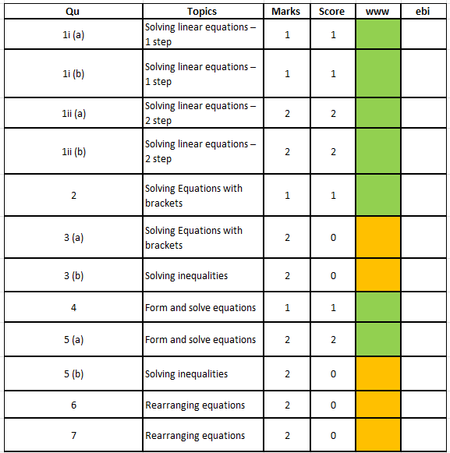


By the way, it looks like you have individual rules for each row. Just one rule for the entire range is sufficient. Let's say you want to conditionally format K41:K100.
Select this range. K41 should be the active cell in the selection.
Set the fill color to orange. This will be the default.
On the Home tab of the ribbon, select Conditional Formatting > Clear Rules > Clear Rules from Selected Cells. This deletes the existing rules.
Then select Conditional Formatting > New Rule...
Select 'Use a formula to determine which cells to format'.
Enter the formula
=I41=J41
without $ signs. Remember, the active cell is in row 41.
Click Format...
Activate the Fill tab.
Select green as fill color.
Click OK, then click OK again.
When you copy/paste the table, the rule will be adjusted automatically.