Forum Discussion

Sorting dates in Excel from oldest to newest is not working
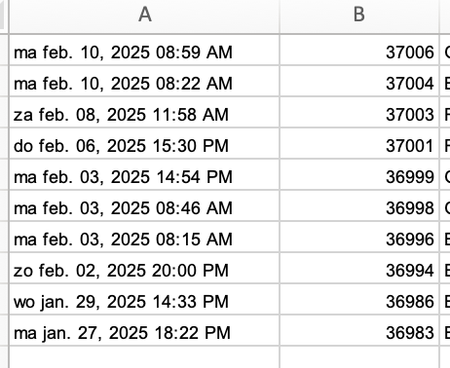

I'm guessing you are opening a CSV file. Don't open that csv file directly. Instead, save it. Then go to Excel and click Data, Get Data, From File, From text/CSV.
Select that date column and select split column by delimiter. Choose space and select to split only by the first delimiter. This splits it into a column with just the day and a column with the remainder of the date. You can delete the day column now. If you're in luck, power query will then recognize the dates already.

Hi JK,
Thanks for your reply. I am actually opening an Excel file and not a CSV file. I tried to split, as you said, and eventually it may work, but too much of a hassle as I have to download these files on a daily basis. I just have to find an easier solution 😅 But thanks!
- JKPieterseFeb 12, 2025Silver Contributor
If this is a daily download to the same folder, I would set up a query that uses Get Data, From File, From Folder. Click Transform and filter the list for the correct folder (it adds subfolders by default, you may not want that). Next, sort the list of files with the most recent at the top, and only keep the first row. Expand the data of the file that remains and then follow the date steps I mentioned before. Now all you need to do in future is refresh your query to get your latest download into something useful.
 SnowMan55Feb 10, 2025Bronze Contributor
Your data does not contain "a date series" as far as Excel is concerned. Instead, it contains a text series where the text contains formatted datetimes. (Clue: The data is left-aligned. By default, Excel aligns numeric values—including dates and times—to the right.)
See the attached workbook for a basic way of handling this. But these techniques still require manual intervention.
"I have to download these files on a daily basis"
The recommendation to use Power Query instead is valid.
How to easily automate boring Excel tasks with Power Query!