Forum Discussion

Simplifying Multiple Conditional Formatting Equations
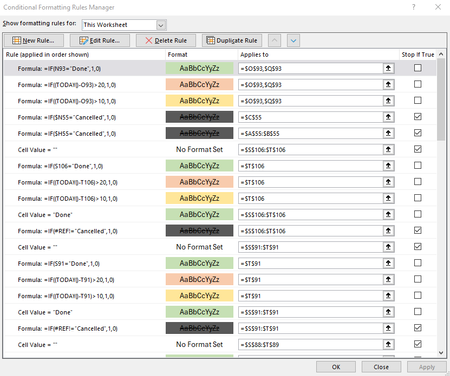

Remove all current rules.
Let's say you have or expect data in rows 2 to 150.
1) Select P2:P150.
P2 should be the active cell in the selection.
On the Home tab of the ribbon, click Conditional Formatting > New Rule...
Select 'Use a formula to determine which cells to format'.
Enter the formula
=AND($P2<>"", $P2<TODAY()-10)
Click Format...
Activate the Fill tab.
Select yellow as fill color.
Click OK, then click OK again.
2) Repeat step 1) but with
=AND($P2<>"", $P2<TODAY()-20)
and red as fill color.
3) Select O2:P150.
O2 should be the active cell in the selection.
On the Home tab of the ribbon, click Conditional Formatting > New Rule...
Select 'Use a formula to determine which cells to format'.
Enter the formula
=$O2="Done"
Click Format...
Activate the Fill tab.
Select light green as fill color.
Click OK, then click OK again.
4) Select A2:Z150.
A2 should be the active cell in the selection.
On the Home tab of the ribbon, click Conditional Formatting > New Rule...
Select 'Use a formula to determine which cells to format'.
Enter the formula
=$O2="Cancelled"
Click Format...
Activate the Fill tab.
Select dark grey as fill color.
Activate the Font tab.
Make sure the Strikethrough check box is selected.
Click OK, then click OK again.

This worked perfect! Thank you so much for helping us clean that up!