Forum Discussion

Shifting Text within Cell
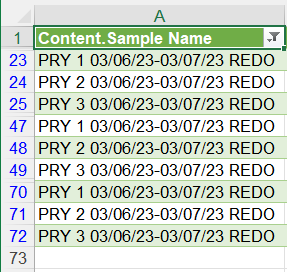
- May 25, 2023
Save the workbook.
Press Alt+F11 to activate the Visual Basic Editor.
Select Insert > Module.
Copy/paste the code into the module window.
With the insertion point anywhere in the code, press F5 to run it.
Switch back to Excel.
If you don't like the result, close the workbook without saving.
If it does do what you want, and if you'd like to re-run the macro later on, save the workbook as a macro-enabled workbook (*.xlsm).
If you don't need the macro anymore, you can save the workbook and ignore the warning that Excel displays.

You can use a formula such as
=RIGHT(SUBSTITUTE(A2, " REDO", ""), 😎
or
=RIGHT(SUBSTITUTE(A2, " REDO", ""), 17)
depending on what you want.
 Mighty_AlMay 25, 2023Copper ContributorThe formula removed redo but i use the work for another column as a COUNTIF criteria. I don't suppose there is another way through find/replace or even via query editor? I could make another column and refromat my table but I was just curious.
- HansVogelaarMay 25, 2023MVP
If you would like to remove the REDO permanently:
Select the column.
Press Ctrl+H to activate the Replace dialog.
Enter a space followed by REDO in the 'Find what' box.
Leave the 'Replace with' box empty.
If you don't see the search option, click 'Options >>'.
Make sure that the check box 'Match entire cell contents' is not ticked.
Click 'Replace All'.
- Mighty_AlMay 25, 2023Copper Contributoris it not possible to move REDO to the beginning of the text in the cell its in?