Forum Discussion

Restarting Formulas at Specified Data Points
- Jun 24, 2021
Rich_100 Okay, let's give it a try. You can follow the applied steps in my file. No need to reverse engineer them. But, ignore the query "Table1". I forgot to delete it.
Step 1 was to create a separate table with just the Customer, Age and Gender.
Step 2 is to go back to the same source (Query "Table1 (2)". Remove some unwanted columns. Then merge the query from step 1 with the cleaned-up table in step 2. This will add the Age and Gender to each Customer record. Reorder columns and then, probably the most important step is to select the customer, age and gender columns and then select to "unpivot other columns", Then you get a long list of "records" from which you can filter out the date fields.
Now you can merge the "Attribute" and "Value" columns, separated by a colon. Close and load to a table, to create the output that you see in columns M:P.
Step 3 is to create pivot table from that table (i.e. the end result from Step 2) in order to give you the condensed view per customer.
As you noticed, PQ has quite a steep learning curve. But once you get over the first hurdles, you'll love it. Good luck!

Rich_100 Since you begin by mentioning "I have a very large data set", I'd suggest you look into Power Query (a.k.a. Get & Transform Data in MS365). But it would be helpful if you could upload a file containing some of your real data (replace any data that identifies real people or any other confidential information). 15 customers or so would do.
 Rich_100Jun 23, 2021Copper Contributor
Hi Riny_van_Eekelen,
Thanks for getting back to me and suggesting the use of Power Query. I’m new to this feature, so just looking into how to use it now.
I've had to sign an NDA with this client, so don't think I'll be able to use anyone’s real data. In place of this, I have drafted some dummy data in the same format. Would this be OK for what you need?
To confirm, the data set is a few hundred thousand cells and the yellow cells in the attached Excel workbook are for the data I am hoping to calculate in the following format:
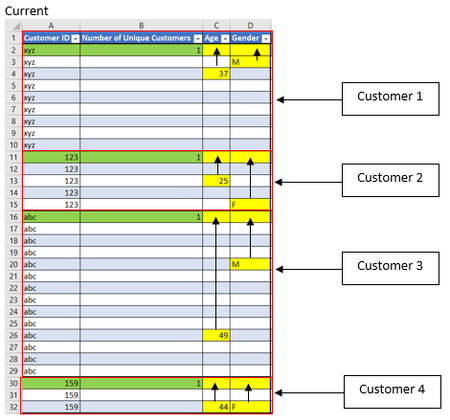
- Age (column C) and gender (column D) – pull data from the corresponding columns to the top line for each client
- Active member (column H)
- An active member is someone who has paid their membership within the last 2 months
- For columns I – N, I just need to get a count of occurrences from the relevant columns for each client
Thank you for any advice or guidance you can provide, it’s greatly appreciated, and please let me know if you have any questions?
I’m going to have a play around with Power Query now and see if I can make any head way.
- Riny_van_EekelenJun 23, 2021Platinum Contributor
Rich_100 Thanks for uploading. Very helpful. Not able to look at this right now. Welcoming others to jump in.
- Rich_100Jun 23, 2021Copper ContributorAll good, thanks. I need to deliver this work to the client by Monday 28th of June, so will continue to play around with Power Query and see where I get to. Any input, tips and tricks are definitely welcome!