Forum Discussion

Conditional formatting not working MS 365, Windows 10, PC
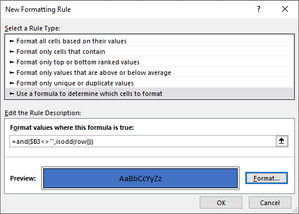

Even better, I think, than "formatting as a table" is to create this AS a table. That allows for all of the wonderful things that Excel can do with tables, including automatically continuing the alternating colors in rows, as you add new rows ad infinitum.
To create it as a table, add a few rows of data, highlight those, along with the headers, and then from the "Insert" tool bar, pick "Tables" and "Table" and have your existing rows converted to table.
If, on the other hand, you have a fixed number of rows -- which seems unlikely for an Employee Attendance Record -- then those other methods would work as well. But as the former director of the HR/Payroll database of a major corporation (now long retired), I think creating all this as a table is the better course of action.
See attached

Thank you soooo much!
I think I was not using F4 properly, also when editing a rule, the box <Applies to> has to be adjusted with F4
Anyway got the tables to work as in the video.
I finally understand F4 in formatting.
Thanks again
- mathetesDec 26, 2022Gold Contributor
I think I was not using F4 properly, also when editing a rule, the box <Applies to> has to be adjusted with F4
That must be a distinction between Windows and Mac (which I'm using). I don't adjust the "Applies To" in that way. Anyway, glad it's working for you now.